
Use a license invitation from your university or organization
Key takeaways
- Join an ATLAS.ti license from your university or organization using either an invite code (entered in Activate Product at my.atlasti.com) or an invite URL.
- After accepting the invitation, the license will appear under My Invitations in your ATLAS.ti account.

Who this article is for
This article is for ATLAS.ti users who have received a license invitation from their organization or university and need to activate it. This may include, for example, students or faculty from a university or members of a research team in an organization.
How to join a license you were invited to
- If your organization or university shares an ATLAS.ti license with you, you will receive either:
- An invite code, or
- An invite URL
- Both allow you to join the shared license through your ATLAS.ti account
An invitation usually looks similar to the example below.

Once you accept the invitation, the license will appear in your My ATLAS.ti Account Page and you will be able to use ATLAS.t according to the available license seats.
1. Join a license using an invite code
- Go to https://my.atlasti.com and log in to your ATLAS.ti account
- If you have not created an ATLAS.ti account yet, you can do so now
-
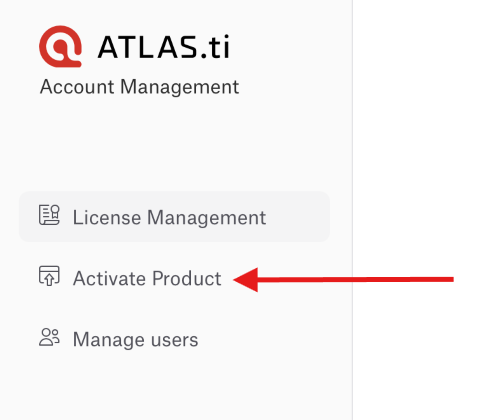
Click Activate Product
- Paste the invite code you received (codes usually begin with I-)
-
Confirm activation
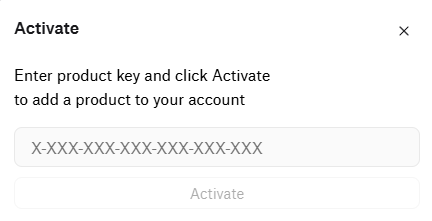
After completing these steps, the license will appear in your account.
2. Join a license using an invite URL
- Open the invite link you received
- Your browser will open the ATLAS.ti license portal
- Log in to your ATLAS.ti account if prompted
- If you have not created an ATLAS.ti account yet, you can do so now
- Confirm the invitation
Once confirmed, you will automatically join the license.
Where to see your shared license
- After joining the license using either method, it will appear in your account under the My Invitations section at: https://my.atlasti.com
- From there, you can see all licenses that have been shared with you.

Contact your license administrator
- For any questions about your license, simply click on "Contact Owner" to send an email to your license admin.

Common issues or mistakes
- Using the wrong account
- Make sure you log in with the same email address where you received the invitation. You may need to use your university/institutional email address to use the license.
- Entering the wrong code format
- Invite codes usually start with I- (not R- or other license keys).
- Not confirming the invite link
- Opening the link is not enough - you must create an ATLAS.ti account to confirm the invitation.
- License not visible after joining
- Try refreshing your account page or logging out and back in.
- No available license seats
- Even after joining, you may not be able to use ATLAS.ti immediately if all seats are currently in use. Please contact your license administrator to check if any license seats are available for you to use.
When to contact support
Contact ATLAS.ti Support if:
- The invitation was accepted, but the license does not appear in the My Invitations section of your ATLAS.ti account.
- You cannot access the license even though the invitation appears active in your account.
- The invitation process produces unexpected errors or behaves differently from the steps described above.