
For admins: Set up a license
Key takeaways:
- Create an ATLAS.ti account in my.atlasti.com, and use a generic email address
- Activate your license with the license key, and share it with others via an invitation key or URL
- License seats are automatically occupied/freed up as people log into/out of ATLAS.ti Windows, Mac, or Web
- Educational, Commercial, and Non-Commercial & Government Licenses are shared licenses that use seat-based access. You can find available licenses in our online shop here.

Who this article is for:
Administrators of ATLAS.ti licenses are responsible for activating the license key, invites others to use the license, and manages license users in the ATLAS.ti account page my.atlasti.com (such as a member of the IT team of your university or the head of a research team)
How to set up your license
- Create your account: Go to my.atlasti.com and register as a new user
- Helpful tips:
- Do not use your personal email address. You may change jobs, and your colleagues will not be able to access the account anymore. Create and use a generic email address, such as atlasti@university_name.edu or sociology@university_name.edu (ensure you receive emails from this account, as the email address must be verified).
- Name the account something descriptive, as the end-users will see this name.
- Use a strong password, as anybody with access to this account can otherwise block the end-users from accessing ATLAS.ti.
- Helpful tips:
- Activate license key (beginning with the letter “R”): Go to My ATLAS.ti, click on "Activate Product", and type/paste the license key
- Important information:
- Once activated, the license is bound to this account and cannot be transferred to another account. Therefore, ensure that you are logged in with the correct account, not, for example, with a private ATLAS.ti account.
- Only one user can be license administrator. Admin privileges cannot be shared with other users.
- Important information:
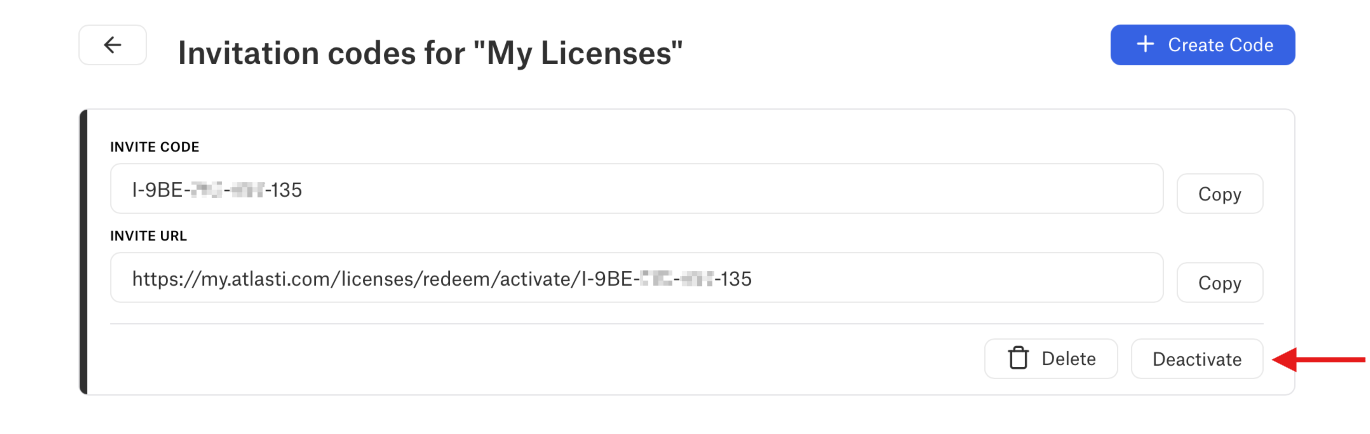
- Invite others: Share the invite code or URL seen in your ATLAS.ti account page
- Helpful tip:
- The invitation keys and links are permanent and do not expire, but it is recommended to change the invite URL/key regularly (e.g., once a year). The admin can choose whether to deactivate old invite keys (e.g., to ensure people who have left the organization can no longer use the license), in which case the new invite URL/key should be shared with everyone who would continue using the license.
- You can share your invite code or URL with people outside your organization. Please remember that as the license holder you are still responsible for any potential abuse or violation of the license terms.
- Helpful tip:

- View and manage users in account page
- Restrict access: You can indicate if you want only users with specific email domains (for example, your organization or university domain) to join the license
- Block users: If someone misuses the license, or you no longer want a person to use the license, you can manually block a user by clicking on “Users” and “Block” next to the specific person you wish to block.
- Disable AI tools: You can disable the AI tools if you do not want any invited users to use AI. You can block it from My ATLAS.ti → Manage Users, Settings, Disable AI Features.
- Installing ATLAS.ti: Each user can download ATLAS.ti Windows or Mac on their computers
- If you need to deploy ATLAS.ti for multiple computers at once (e.g., in a computer lab), you can request a .msi installer from our Support Team.
- ATLAS.ti Web needs no installation, only a compatible browser; access is provided at web.atlasti.com
- Once installed, the software will automatically update itself as new updates are released (after confirmation from the user). In larger organizations, the IT administrator may need to install the updates, as the end-users may not have the necessary permissions.
Example: Sharing a license with an invite code
If your organization is small, you can email the invite key to each member, or you can print it out and post it on your bulletin board. For larger organizations, you can, for example, share this key with information on how to use it on your organization's intranet.
Example: Sharing a license with an invite URL
Together with the invite key, we provide an invite URL. The invite URL is easier to integrate into a larger organization's intranet or other IT systems.
Limits for inviting users
With Educational, Commercial, and Non-Commercial & Government Licenses, you may invite as many users as you wish. Access is controlled by the number of purchased seats, meaning only that many users can use ATLAS.ti at the same time.
With Campus Licenses, the number of invited users is limited to five times the number of seats. For example, a 500-seat campus license allows up to 2,500 invited users.
Common issues or mistakes
- Do not use your personal email address when creating the ATLAS.ti account to manage the shared license. You may change jobs, and your colleagues will not be able to access the account anymore. Create and use a generic email address, such as atlasti@university_name.edu or sociology@university_name.edu (ensure you receive emails from this account, as the email address must be verified).
- Name the account something descriptive, as the end-users will see this name.
- Use a strong password, as anybody with access to this account can otherwise block the end-users from accessing ATLAS.ti.
- Once activated, the license is bound to this account and cannot be transferred to another account. Therefore, ensure that you are logged in with the correct account (and not, for example, with a private ATLAS.ti account).
- If you suspect an invite URL/key has been compromised, you can generate a new key and invalidate the old invite keys.
When to contact ATLAS.ti support
Our team is happy to help, please feel free to each out:
- If you need an .msi installer for ATLAS.ti Windows/Mac
- If you receive an error message while setting up your license
- If you have followed the above steps but still encounter difficulties with setting up and using your license