
For admins: Add more seats to a license
Key takeaways
- This article applies to Educational, Commercial, Non-Commercial & Government, and Campus Licenses. Student Licenses are personal licenses and cannot be expanded with additional seats.
- You can increase the number of available seats by purchasing an additional ATLAS.ti license and activating it under the same administrator account.
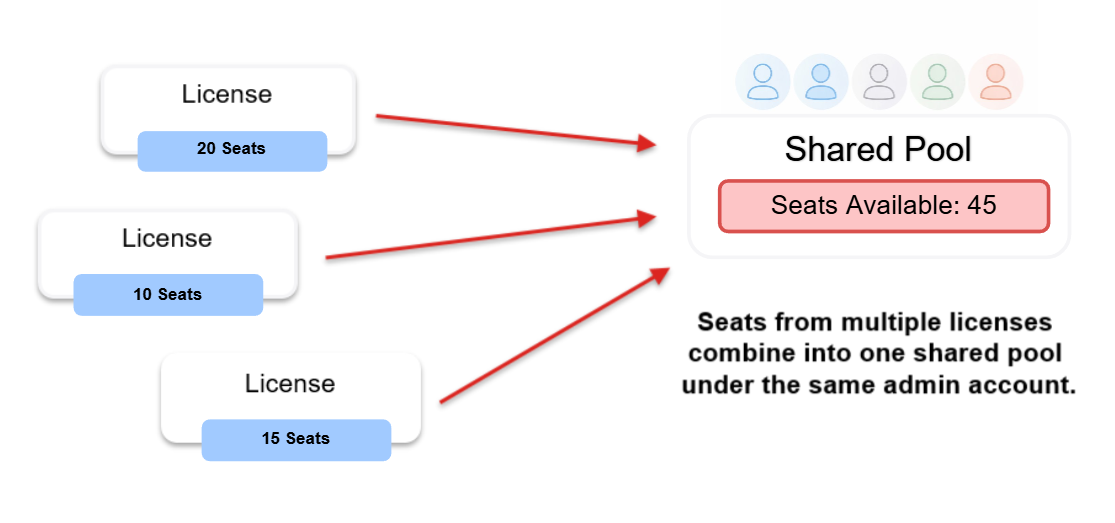
- All licenses activated under the same account are combined into a shared license pool, and seats are added automatically.
- You do not need to re-invite users—existing users can use the additional seats immediately.
- Only licenses of the same type (e.g., commercial, educational, campus) can be combined.
Who this article is for:
Anyone who administers an ATLAS.ti license or campus license and wants to add more seats for additional users. This article does not apply to Student Licenses, which are personal and cannot be expanded with additional seats.. For example, this is the person who activates the license key, invites others to use the license, and manages license users in the ATLAS.ti account page my.atlasti.com (such as the head of a research team or department)
How to add seats to your license
- To increase the number of available seats, you need to purchase an additional license and activate it under the same administrator account.
Step 1 – Purchase an additional license
- Purchase a new ATLAS.ti license with the number of seats you need.
- Please keep in mind to purchase the same type of license. Commercial licenses can only be combined with other commercial licenses, and educational licenses with educational licenses. Mixing commercial, educational, or government licenses is not supported.
Step 2 – Activate the license
- Go to https://my.atlasti.com
- Enter the new license key (R-...) in Activate Product
- The new license is automatically added to your existing license pool (new seats added)
- You do not need to reinvite users. All invited users will automatically be able to use the additional seats.
- Please note that the existing license and the new license may have different expiration dates.
- For example, if your organization has a 20-seat license and you add another 10-seat license, you will have 30 seats in total, and users can use them immediately. However, each license expires separately. For example:
- 20 seats expire on 2026-06-21
- 10 seats expire on 2028-06-21
- This means:
- Until 2026-06-21 → 30 seats available
- After 2026-06-21 → 10 seats available
- After 2028-06-21 → no seats available
- For example, if your organization has a 20-seat license and you add another 10-seat license, you will have 30 seats in total, and users can use them immediately. However, each license expires separately. For example:
Common issues and mistakes
- I activated the new license but no seats were added
- Make sure the license was activated under the same administrator account.
- I used a different license type
- Only licenses of the same type (e.g., commercial with commercial) can be combined.
- I expected users to need reinviting
- You do not need to invite users again. Seats are added automatically to the existing pool.
- Seats are still full after adding a license
- All seats may still be in use. Seats are only freed when users close ATLAS.ti or log out.
- I am confused about seat availability over time
- Each license has its own expiration date, so the total number of seats may decrease as licenses expire.
When to contact support
Contact ATLAS.ti Support if:
- You are unsure which account your licenses are linked to
- You accidentally activated a license under the wrong account
When contacting support, please include:
- The email address associated with your administrator account
- Your license key(s)
- A description of the issue
- Screenshots, if available