
Fix - Free up license seats
Key takeaways:
- If you see an error message indicating that no license seats are currently available or that all seats are in use, this means a license seat needs to be released for you to use ATLAS.ti.
- A license seat can be released by 1) logging out of ATLAS.ti (Windows, Mac, or Web) or 2) from my.atlasti.com
- If you do not have access to the computer where you were using ATLAS.ti, you can immediately release your seat from my.atlasti.com by clicking "Free up my seats".
Who this article is for
This article is for anyone using ATLAS.ti across multiple devices who cannot start the software because all license seats appear to be occupied.
Please note, you can only free up a seat that you are occupying (i.e., somewhere you are logged in with your ATLAS.ti account). If other people are currently occupying all the license seats in your multi-user or campus license, you can contact your license admin from my.atlasti.com to ask for assistance (e.g., to confirm whether anyone forgot to log out or to add more seats to the license).
How to free up your seat
There are two ways to free up a license seat: 1) Click the "Free up my seats" button in my.atlasti.com or 2) Log out of ATLAS.ti Windows, Mac, or Web
1. Freeing up your license seats from My ATLAS.ti
- If you previously used ATLAS.ti Windows, Mac, or Web on another device, your license seat may still be in use on that session
To release it immediately:
- Go to https://my.atlasti.com
- Log in to your account
- Click Free Up My Seats at the bottom of the page
- This will release any seats linked to your account so you can start ATLAS.ti again

If you do not see the Free Up My Seats option:
- You are not currently using a license seat
- There is no seat to release
- The option only appears when a seat is actively in use
2. Freeing up your license seat by logging out of ATLAS.ti
- A license seat is automatically released when:
- The user closes the ATLAS.ti application
- The user logs out
- The user closes the browser tab (ATLAS.ti Web)
- If all seats are currently in use:
- You may need to wait until another user finishes their work
- You can ask someone you know is using the same license to ask if they have finished their work and can close the software or log out
- To log out of ATLAS.ti Windows or Mac:
- On the welcome/start screen, click on the avatar icon and click on Log out or Log out and Restart.


Why this error message appears
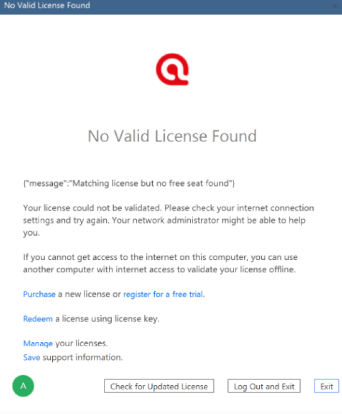
You may see one of the following messages when trying to start ATLAS.ti:
Desktop (Windows or Mac):
{"message":"Matching license but no free seat found"}
ATLAS.ti Web:
“This license is exceeding the maximum user count.”
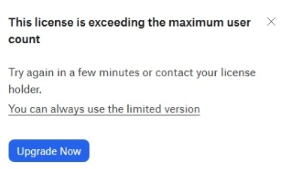
- Both messages mean that all available license seats are currently in use
ATLAS.ti uses a concurrent seat model, meaning:
- Only a limited number of users can use the software at the same time
- When all seats are occupied, additional users must wait
If you are invited to use someone else’s license:
- The message may mean another user is currently using a seat
- To make sure the other user is logged out:
- Ask the other user to go to my.atlasti.com
- Click Free up my seats
- This will release their seat and allow you to start using ATLAS.ti right away
Common mistakes or errors
-
Not logging out or closing the app properly
Users may leave ATLAS.ti running, which keeps the seat occupied even if they are not actively working
-
Using ATLAS.ti on multiple devices at the same time
A seat can remain tied to another device/session, preventing access on a new one
-
Assuming there is a technical error
The message usually just means all seats are in use—not that something is broken
-
Not using “Free up my seats” when needed
If a session is stuck, not releasing the seat manually can delay access
-
Not coordinating with other users
In shared licenses, users may not realize someone else is actively using a seat
When to contact support
Contact ATLAS.ti Support if:
- You cannot start ATLAS.ti even though the account portal shows that seats should be available.
- The license remains locked or unavailable for an extended period despite users closing the software and releasing their sessions.