
Fix - Free up license seats
Key takeaways
- If you see a message that no license seats are available, it means all seats are currently in use.
- You can free up a seat by 1) logging out of ATLAS.ti (Windows, Mac, or Web) or 2) using the “Free up my seats” option in my.atlasti.com.
- If you do not have access to the device where the seat is in use, you can release it remotely from your account page.
- In shared licenses, you may need to wait for another user to finish or contact your license administrator.
Who this article is for
Anyone using ATLAS.ti who cannot start the software because all license seats are occupied and needs to release or manage their license seat.
Please note, you can only free up a seat that you are occupying (i.e., somewhere you are logged in with your ATLAS.ti account). If other people are currently occupying all the license seats in your, you can contact your license admin from my.atlasti.com to ask for assistance (e.g., to confirm whether anyone forgot to log out or to add more seats to the license).
How to free up your seat
There are two ways to free up a license seat:
Option 1 – Free up your seat from My ATLAS.ti
If you no longer have access to the device where ATLAS.ti is running, you can release your seat remotely:
- Go to https://my.atlasti.com
- Sign in to your account
- Click Free up my seats at the bottom of the page

This will release any active sessions linked to your account so you can start ATLAS.ti again.
If you do not see the “Free up my seats” option, it means that no license seat is currently in use under your account, so there is no seat to release.
Option 2 – Log out of ATLAS.ti
- ATLAS.ti Windows
- From the welcome screen: Click on the Avatar > Log out and Restart

- Or from inside the project, File > Options> ATLAS.ti, Click on the Avatar > Log out and Restart

- ATLAS.ti Mac
- From the welcome screen: Click on the Avatar > Log out

You can see our video tutorial on how to log out from ATLAS.ti Windows and ATLAS.ti Mac.
- ATLAS.ti Web
- From the welcome screen: Click on the Avatar > Log out

Why this message appears
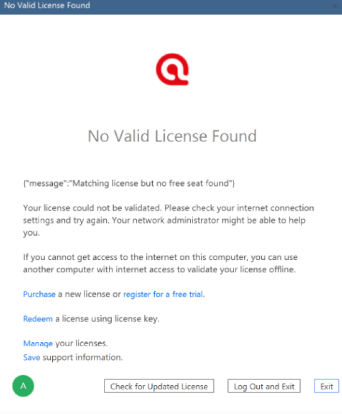
You may see the following messages:
- Desktop (Windows or Mac):
- ATLAS.ti Web:
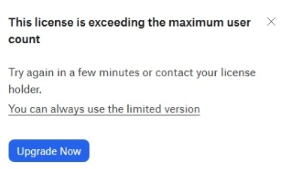
These messages mean that all available license seats are currently in use.
ATLAS.ti uses a concurrent seat model, which means:
- A limited number of users can use the software at the same time
- Each active session occupies one seat
- When all seats are in use, additional users cannot start ATLAS.ti
Common issues and mistakes
- I did not log out or close ATLAS.ti properly
- Leaving the application open keeps the seat occupied, even if you are not actively working.
- I am using ATLAS.ti on multiple devices
- A seat may still be active on another device. Use “Free up my seats” to release it.
- I thought this was a technical error
- This message usually means all seats are in use, not that something is broken.
- I am sharing a license with others
- Another user may currently be using the seat. Coordination may be required.
When to contact support
Contact ATLAS.ti Support if:
- You cannot start ATLAS.ti even though seats should be available
- A license seat remains occupied even after logging out or using “Free up my seats”
- The license appears locked or unavailable for an extended period
When contacting support, please include:
- The email address associated with your ATLAS.ti account
- A description of the issue
- Screenshots or error messages, if available