
How to work as a team in ATLAS.ti (Windows, Mac, and Web)
Key takeaways
- Teamwork features are available with any ATLAS.ti license.
- ATLAS.ti tracks which user created codes, quotations, and other project content.
- ATLAS.ti Web allows multiple users to work together in the same project in real time.
- ATLAS.ti Desktop (Windows and Mac) use a merge-based workflow where each team member works on their own project copy.
- Desktop projects can be shared between Windows and Mac without data loss.
- ATLAS.ti Desktop includes inter-coder agreement tools for comparing coding consistency across team members.
Who this article is for
This article is for anyone collaborating with colleagues, students, research assistants, or coding teams in ATLAS.ti. It explains the different teamwork workflows available in ATLAS.ti Web, Windows, and Mac, and helps you choose the best setup for your team.
Choose the right teamwork workflow
| If you want to... | Best option |
| Calculate inter-coder agreement | ATLAS.ti Desktop (Windows or Mac) |
| Work together in the same project at the same time | ATLAS.ti Web |
| Collaborate remotely with minimal setup | ATLAS.ti Web |
| Prevent members from seeing each others' coding | ATLAS.ti Desktop (Windows or Mac) |
| Create networks | ATLAS.ti Desktop (Windows or Mac) |
How teamwork works in ATLAS.ti
ATLAS.ti offers different collaboration workflows depending on the platform you use.
- ATLAS.ti Web supports live collaboration where multiple users work on the same project simultaneously, all changes are automatically saved and available to all team members
- ATLAS.ti Windows and Mac support offline collaboration through project sharing and merging workflows, including seamless combination of Windows and Mac projects and inter-coder agreement calculation
How to collaborate in ATLAS.ti Web
ATLAS.ti Web supports real-time teamwork. Multiple users can work on the same project simultaneously, and all changes are automatically updated for everyone.
How to invite team members
- Open your project in ATLAS.ti Web
- Open Project Settings using the gear icon
- Click Add new project member

- Enter the collaborator’s name and email address
- Optionally add a personalized message
- Click Send invitation
- Invited users will receive an email invitation and can access the project from their web.atlasti.com
How to remove team members or leave a project
- Project owners can:
- Add team members
- Remove team members

- Manage project access
- If you were invited to a project, you can leave the project from the Project Settings page.

How to transfer Web project ownership
- Open Project Settings
- Open Your Team section
- Locate the team member
- Open the menu next to their name
- Select Make project owner
- Confirm the transfer
- After the transfer, the selected user becomes the new project owner
Important notes for Web teamwork
- An internet connection is required.
- Team members need access permissions to the project.
- Changes made by collaborators are visible to other team members in real time.
- ATLAS.ti Web projects can later be imported into ATLAS.ti Windows or Mac for advanced analysis.
How to collaborate in ATLAS.ti Desktop (Windows and Mac)
Unlike ATLAS.ti Web, Desktop teamwork is asynchronous. To collaborate with others using ATLAS.ti Desktop, you can share your project with anyone else. Each team member can work on their own copy of the project at the same time. The separate project copies are later merged together.
Step 1 - Create the master project
One person, usually the project administrator or lead researcher:
- creates the project
- adds documents
- prepares the initial code structure if needed
Step 2 - Share the project with team members
The project can be shared by:
- exporting a project bundle
- sharing through ATLAS.ti project cloud
- sending project files manually
- more details on sharing Desktop projects are provided below
Each team member receives their own copy of the project.
Step 3 - Team members work independently
Each coder works separately on their own project copy.
Team members can:
- create quotations
- apply codes
- write comments and memos
- build networks
- analyze data
ATLAS.ti automatically tracks which user created or applied each item.
Step 4 - Merge projects
After coding is completed:
- The project administrator collects the updated project copies.
- The projects are merged into a single master project.
- The merged project can then be reviewed, cleaned up, and analyzed further.
Important: Work on the same project copy to avoid duplicated documents
If multiple team members will code the same documents, everyone should work from the exact same project copy.
Recommended workflow:
- One person creates the project and adds all documents.
- The project is exported and shared with the team.
- Each team member imports that project and works in there.
- Upon merging the projects, the documents will not be duplicated.
If each person imports the same files separately on their own computer, ATLAS.ti will treat them as different documents during project merge — even if the files appear identical. The result is duplicated documents after merging.
A note: Duplicate codes are easy to merge, but duplicated documents are much more difficult to fix.
To avoid this issue, always distribute one shared project copy before coding begins.
Best practices for Desktop teamwork
- Before starting
- Agree on code names and coding rules
- Create a shared codebook
- Decide who manages project merges
- Define folder and file naming conventions
- During teamwork
- Keep regular backups
- Merge projects regularly
- Avoid unnecessary code renaming
- Use comments and memos to document coding decisions
- Make sure each team member uses their own user account
- After merging
- Review duplicate or overlapping codes
- Clean up redundant codings
- Check coding consistency
- Review merged content before continuing analysis
Sharing options for Desktop projects
- Upload the project to the cloud storage and send an invite link:
- To share a project with colleagues, click on the three dots next to your project name from the ATLAS.ti welcome screen, and select "Share".
- Enter the email address of the ATLAS.ti account of the person you want to share the project with. Please keep in mind that the email entered must be associated with an ATLAS.ti account with a valid license. Moreover, the email address is case sensitive, so you must enter the email exactly as it appears in the person's ATLAS.ti account.
- ATLAS.ti will generate an invitation link. Copy this link and send it to your colleague. Note that the link is personalized and can only be redeemed by the person it was generated for.
- Once the person receives the link, they need to paste the link into a browser, select "Download", and it will redirect them to the ATLAS.ti software. The download process will begin, and once it's complete, the person can access the project in their own ATLAS.ti.
- To return the project to you, the other person can upload the updated version of their project to the cloud storage and share the download link with you. You can then open their project and, if desired, merge it into your own project.
- Export the project and send it to your team members:
- You can export a project from ATLAS.ti Desktop.
-
In ATLAS.ti Windows, go to File > Export > Project bundle.
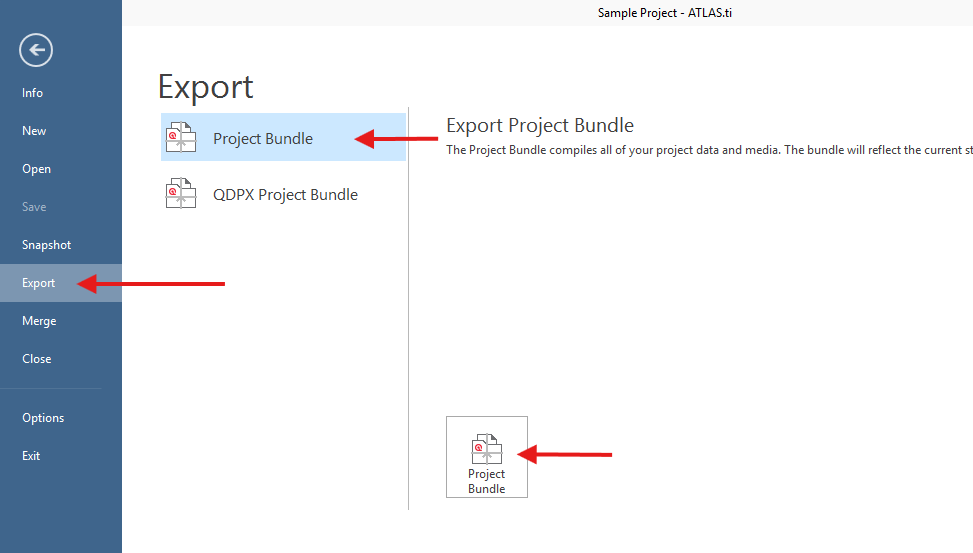
- In ATLAS.ti Mac, go to Project > Export > Project.
-
- This will create .atlasti file
- Send the project (.atlasti file) to your team members (via email, online cloud storage, USB stick, etc.).
- Your team members can then import the project into ATLAS.ti Windows or Mac. They can continue working on the project. Later, they can send their project back to you , and you can merge these different copies of the project together.
- You can export a project from ATLAS.ti Desktop.
How to merge Desktop projects
In Desktop workflows, collaborators usually work on separate project copies. Once work is completed, projects can be merged together.
- The Master project is the project into which another project, called the Import project is merged. The Master project has to be loaded first before invoking the Merge Project option.
- To begin the merge process:
- Open the Master project.
- In Windows: Select File > Merge
- In Mac: Select Project > Merge with Project..
- After selecting a project or project bundle, click on the Merge button.
- ATLAS.ti checks the two projects for identical and different items. After this process is completed, you see a Pre-Merge Summary.
- If there are conflicts between the Master project, and the project that you import, you can solve the conflict in two ways:
- Keep: the Master project 'wins', and the changes made in the Import project are ignored.
- Override: the version in the Master project will be overridden, and the changes made in the Import project 'win'.
- If all team members have been coding different documents, merge conflicts are unlikely to occur.
- After merging, check the final merge report, and the merged project for plausibility. If you are satisfied with the results, save the project. If not, you can always select Undo.
- Open the Master project.
Inter-coder agreement (ICA)
ATLAS.ti Desktop includes built-in inter-coder agreement tools for evaluating coding consistency across team members.
Supported measures include:
- Percent agreement
- Holsti
- Cohen’s Kappa
- Krippendorff’s Alpha
A typical ICA workflow includes:
- Agreeing on coding rules
- Having multiple coders code the same material
- Merging the projects
- Running the ICA analysis
For best results, teams should establish clear coding guidelines before starting.
Common issues and mistakes
- I invited users to the license, but they cannot access the project
- Sharing the same license does not automatically give users access to shared projects in ATLAS.ti Web or Desktop. Team members must also be invited to the project itself.
- Invitation links are not working
- Make sure the invitation was sent to the email address associated with the collaborator’s ATLAS.ti account.
- For ATLAS.ti Web projects, if the email invitation was not received, collaborators can also:
- Open web.atlasti.com
- Check the welcome screen
- Look for the shared project card
- Accept the invitation directly from there
- We need to work on the same project simultaneously while using Desktop
- Real-time collaboration is currently supported only in ATLAS.ti Web. Desktop teamwork workflows are asynchronous and usually require project merging.
- We need to calculate Inter-Coder Agreement (ICA) while using Web
- ICA tools are currently available only in ATLAS.ti Desktop (Windows and Mac).
- Collaborators are using different ATLAS.ti versions or platforms
- All collaborators should use the same ATLAS.ti version, for example Desktop version 26 for Windows or Mac.
- Using a mix of Desktop and Web collaboration workflows may cause duplication or inconsistencies in the final merged project.
- Our desktop teamwork project contains duplicate documents
- All collaborators should work from the same original project created by the project administrator (master project).
- Creating separate project copies independently instead of using the master project may result in duplicate content after merging.
- A collaborator uploaded or edited documents separately in Desktop
- If team members independently upload or modify the same documents in separate project copies, duplicate documents may appear after project merging.
When to contact support
Contact ATLAS.ti Support if:
- Team members cannot access shared projects
- Project invitations fail or do not appear correctly
- Project merging creates errors or unexpected duplication
- Projects cannot be uploaded, downloaded, or merged
- You experience synchronization or collaboration issues
- Ownership transfer is unavailable
- Collaboration workflows behave unexpectedly across Windows, Mac, or Web
When contacting support, please include:
- Your ATLAS.ti version
- Your operating system
- The platform you are using (Windows, Mac, or Web)
- A description of your teamwork workflow
- Whether collaborators are using Desktop, Web, or both
- Screenshots or error messages, if available