
Choosing the right ATLAS.ti platform for your research
Key Takeaways
- ATLAS.ti Web and ATLAS.ti Desktop (Windows and Mac) use the same qualitative analysis methodology but support different workflows.
- ATLAS.ti Web focuses on accessibility and real-time collaboration.
- ATLAS.ti Desktop provides additional advanced tools, multimedia support, and offline work.
- Projects can be transferred between Desktop and Web through export and import workflows.
- ATLAS.ti Desktop cloud storage and ATLAS.ti Web are separate systems.
Who this article is for
Anyone who wants to decide whether ATLAS.ti Web or ATLAS.ti Desktop (Windows or Mac) is the best fit for their research workflow, collaboration needs, or data analysis requirements.
How to choose between ATLAS.ti Web and Desktop
ATLAS.ti is available in two platforms:
- ATLAS.ti Desktop (Windows and Mac)
- ATLAS.ti Web
Both platforms support the same core qualitative analysis methodology. In both platforms, you can:
- Organize documents
- Create codes and quotations
- Analyze qualitative data
- Use AI-assisted tools
- Build analytical workflows
The main differences relate to:
- Collaboration workflows
- Multimedia support
- Advanced analytical tools
- Accessibility and mobility
- Project storage and synchronization
Why ATLAS.ti Web
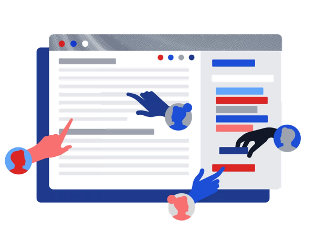
- ATLAS.ti Web is designed for accessibility, browser-based workflows, and real-time collaboration. ATLAS.ti Web may be the better choice if you:
- Work mainly online
- Need real-time teamwork
- Frequently work across different computers
- Prefer browser-based access without software installation
- Need flexible short-term subscription access
- ATLAS.ti Web allows multiple users to work on the same project simultaneously. Changes are automatically saved, synchronized, and visible to collaborators in real time.
- Projects are stored online and accessible from any supported browser on:
- Windows computers
- Mac computers
- Chromebooks
- Shared computers
- Important limitations of ATLAS.ti Web
ATLAS.ti Web currently does not support:
- Audio and video file
- Auto transcription
- Coding image regions with rectangle selections
- AI Summaries
- Importing code lists from spreadsheets
- Some advanced visualization tools
If your research depends heavily on multimedia analysis or advanced desktop features, ATLAS.ti Desktop may be a better option.
Why ATLAS.ti Desktop (Windows or Mac)
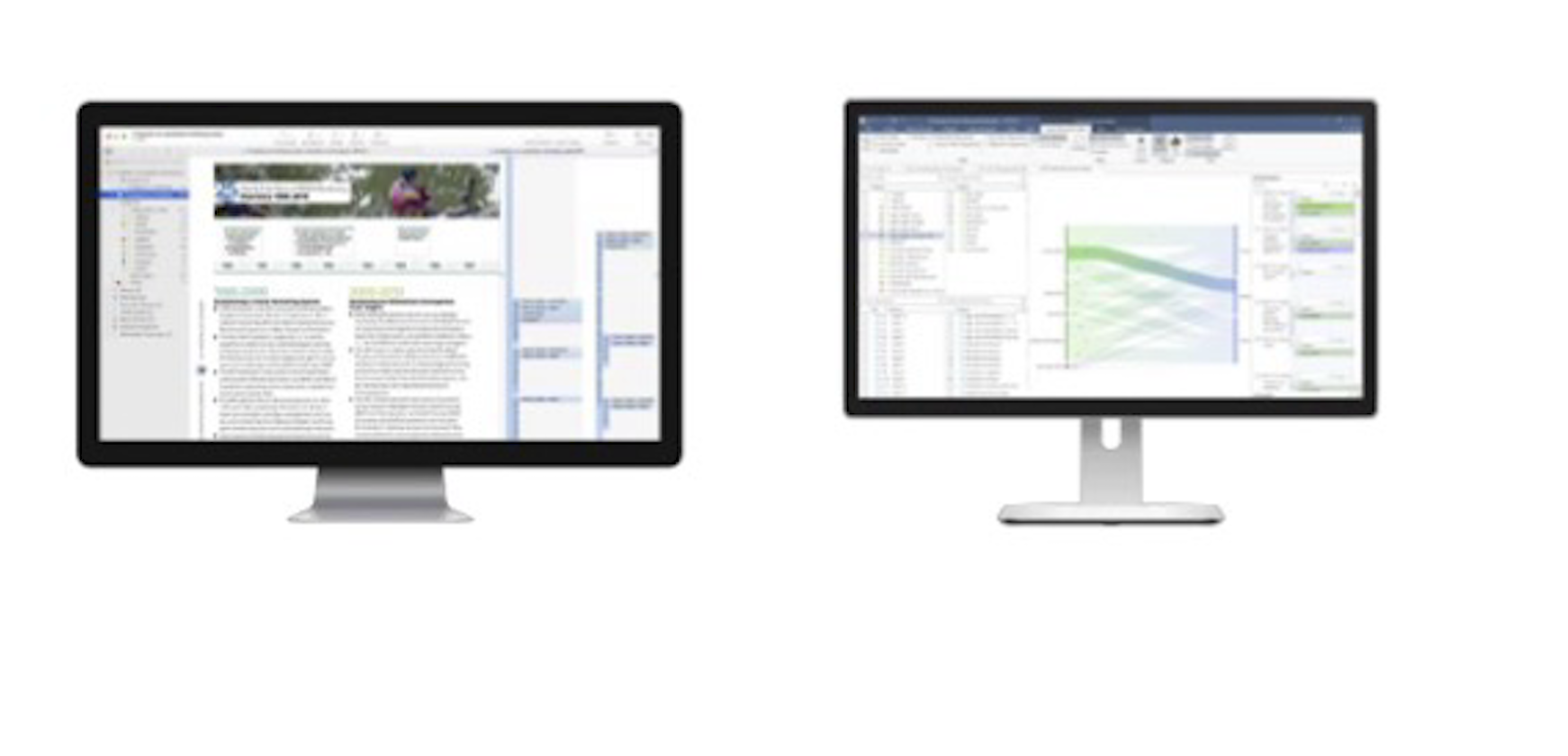
ATLAS.ti Desktop is designed for advanced qualitative analysis workflows and multimedia research.
ATLAS.ti Desktop may be the better choice if you:
- Working with multimedia files
- Need advanced visualizations
- Work offline frequently
- Use large or complex projects
- Need advanced import/export options
- Want AI Summaries or Auto transcription
ATLAS.ti Desktop supports:
- Audio and video files
- Multimedia coding
- Manual transcription
- AI automatic transcription
- Advanced conceptual visualization tools
- Word Cloud and Network tools
- Importing code lists from spreadsheets
Desktop projects are stored locally on your computer, which allows you to:
- Work offline
- Maintain local control of data
- Store projects on institutional systems
- Work with sensitive data in controlled environments
How Desktop cloud storage differs from ATLAS.ti Web
A common source of confusion is the difference between:
- ATLAS.ti Desktop cloud storage
- ATLAS.ti Web
These are separate systems.
ATLAS.ti Desktop Cloud Storage
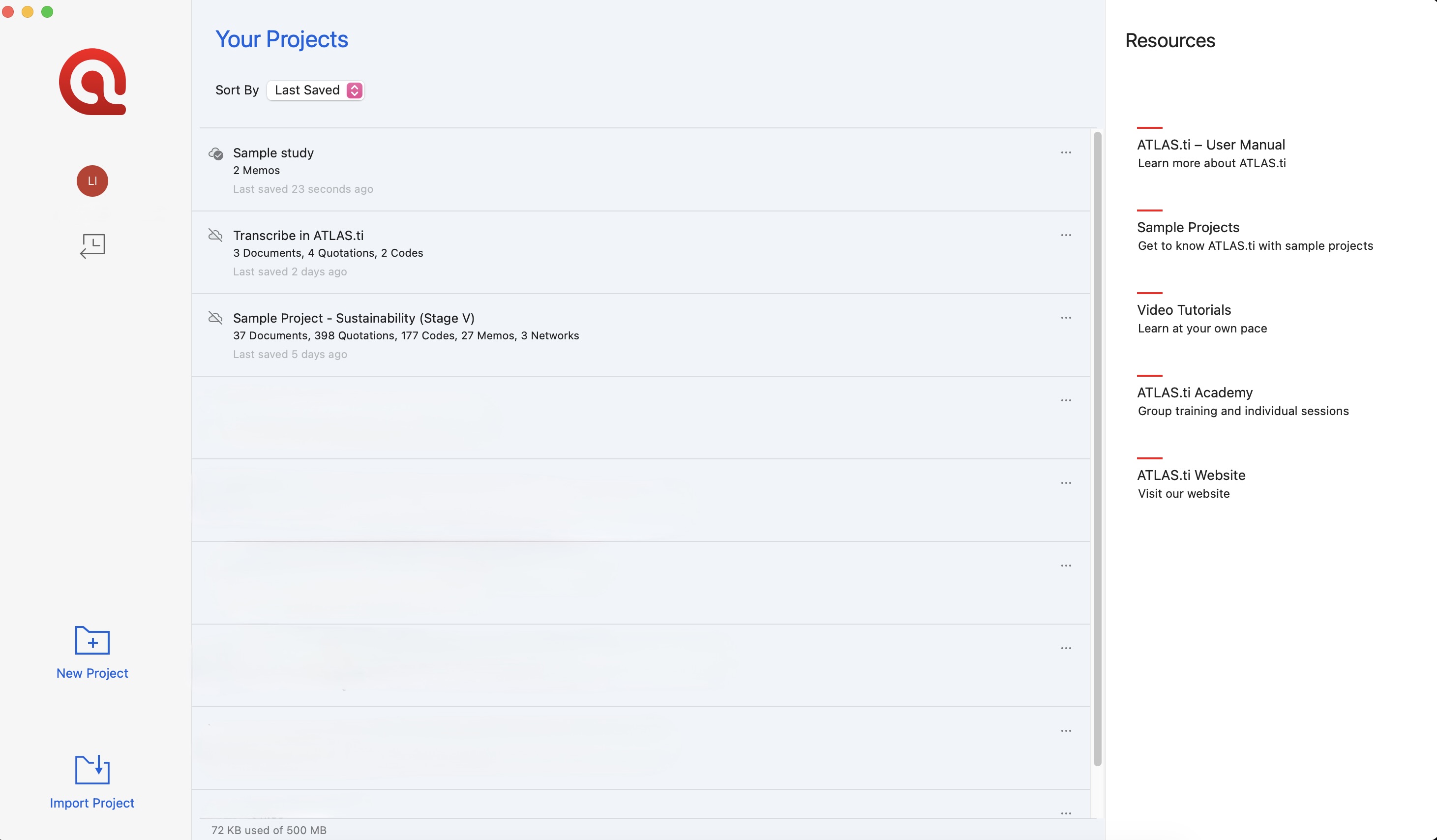
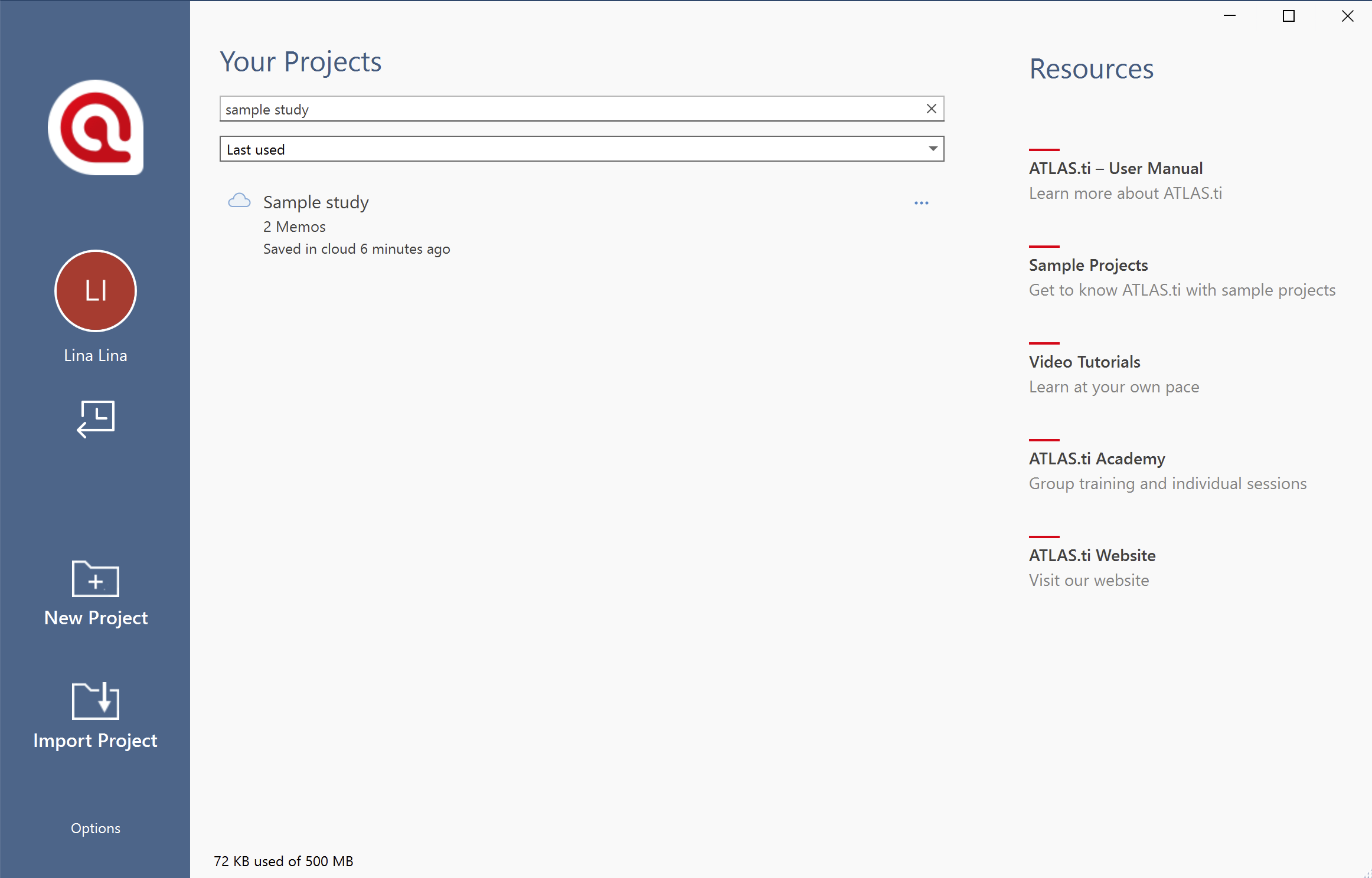
- Desktop cloud storage is an online storage space linked to your ATLAS.ti account. It allows you to:
- Upload desktop projects
- Download projects on another computer
- Back up projects online
- Share desktop projects with collaborators
- However, desktop cloud storage does not support live collaboration
- Collaborators work on separate project copies
- Desktop cloud projects do not automatically appear in ATLAS.ti Web
ATLAS.ti Web
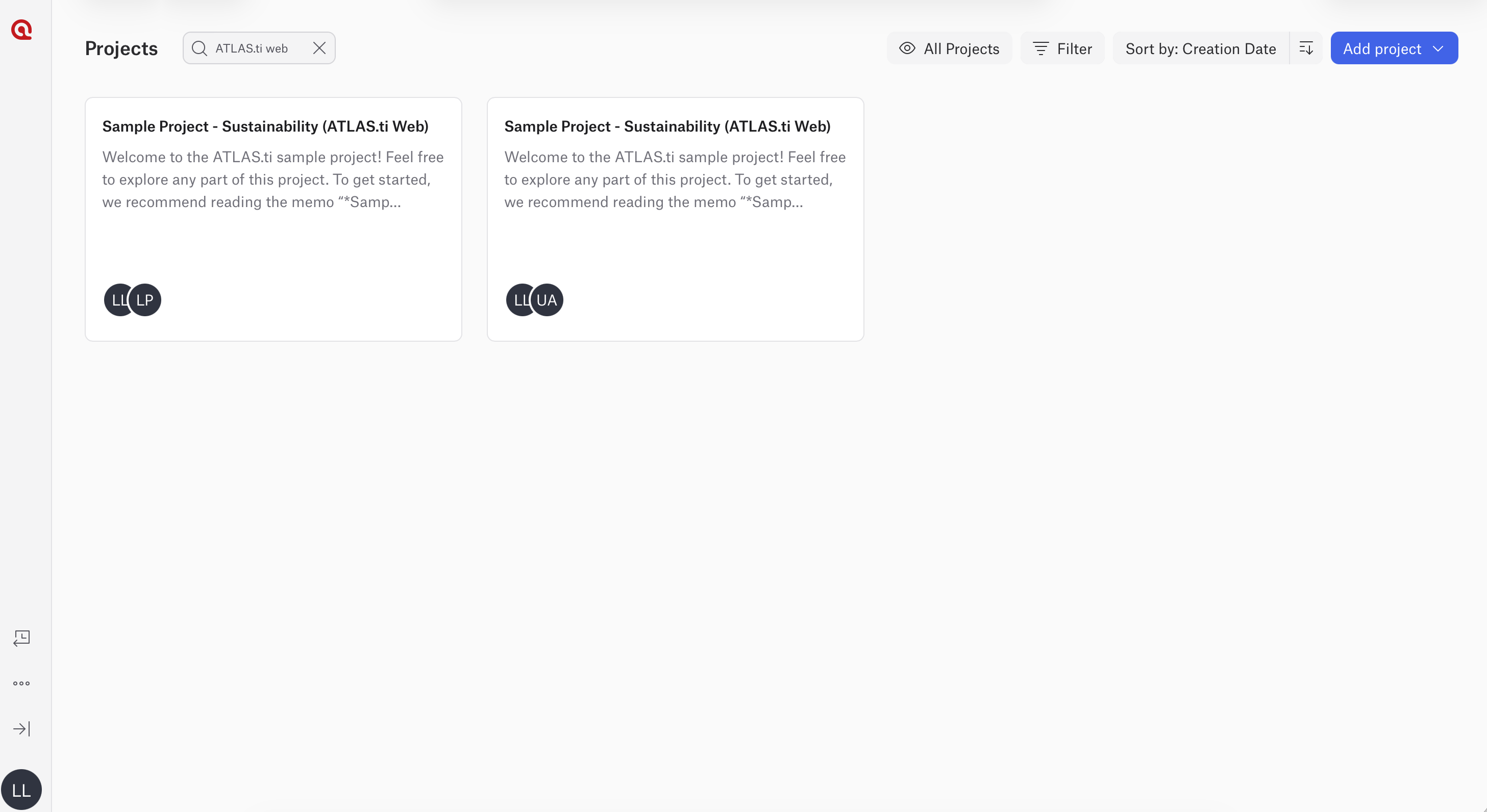
- ATLAS.ti Web stores projects directly online and supports live collaboration. Projects automatically:
- Sync online
- Update in real time
- Remain accessible from any browser
How to work across Desktop and Web
Projects can be transferred between platforms using export and import workflows.
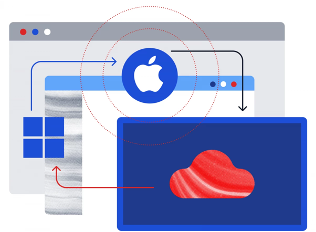
To move a project:
- Export the project from the original platform
- In ATLAS.ti Windows: File > Export > Project bundle
- In ATLAS.ti Mac: Project > Export > Project
- In ATLAS.ti Web: Project Settings > Export for ATLAS.ti Desktop
- Import the project into the second platform
- In ATLAS.ti Windows:
- From Welcome screen: Import Project
- From inside an existing project: File > New > Import Project
- In ATLAS.ti Mac:
- From Start screen: Import Project
- From inside an existing project: Project > Import Project
- In ATLAS.ti Web: Add Project > Import Desktop
- In ATLAS.ti Windows:
This supports workflows such as:
- Desktop → Web
- Web → Desktop
- Windows → Mac
- Mac → Windows

Please note that ATLAS.ti Web does not support all desktop features. Some desktop-only features may not transfer completely into Web.
You can indeed move your project from ATLAS.ti Web to ATLAS.ti Desktop and vice versa, but we do not recommend that you frequently move back and forth. This is simply because ATLAS.ti Web does not support all of the features of ATLAS.ti Desktop yet, so some things cannot be imported into ATLAS.ti Web (such as images or networks). We recommend this just so that you do not accidentally lose any parts of your project.
A great way to collaborate with others is to create your project in ATLAS.ti Web and invite everyone else to your project. Since everyone is working online, you can collaborate in real time. Once the coding of the data has been done, you could download the ATLAS.ti Web project and import it into ATLAS.ti Windows/Mac to conduct further analyses (including create networks, Sankey diagrams, etc.). These are just some suggestions naturally, and please feel free to write us again if you would like to talk more about your specific research needs, and we'd be happy to help.
Finally, if you want to analyze inter-coder agreement, then you need to use only ATLAS.ti Desktop for your teamwork. This is because ATLAS.ti Desktop has a number of built-in features for tracking and calculating inter-coder agreement.
How researchers commonly use both platforms
Many researchers combine both platforms depending on their workflow.
For example:
- Use ATLAS.ti Web for collaborative coding and teamwork
- Use ATLAS.ti Desktop for advanced analysis and multimedia work
- Transfer projects between platforms when needed
Common issues and mistakes
- Expecting desktop cloud storage to sync automatically with ATLAS.ti Web
- Desktop cloud storage and ATLAS.ti Web are separate systems. Projects do not automatically appear across platforms.
- Trying to collaborate live in Desktop cloud storage
- Desktop cloud storage does not support simultaneous editing of the same project copy. For real-time collaboration, use ATLAS.ti Web.
- Missing features after importing a project into Web
- Some desktop-only features are not supported in ATLAS.ti Web.
- Using Web for multimedia analysis workflows
- Audio/video analysis, multimedia transcription, and some advanced visualization tools are currently available only in ATLAS.ti Desktop.
- Collaborators are using different ATLAS.ti versions or platforms
- Using different versions or mixing Desktop and Web teamwork workflows may cause duplication or inconsistencies in merged projects
When to contact support
Contact ATLAS.ti Support if:
- Projects cannot be imported or exported between platforms
- Projects appear incomplete after transfer
- Cloud storage projects are missing
- Licensing access does not match your subscription
- Collaboration features are not working correctly
- You are unsure which workflow or platform best fits your research setup
When contacting support, please include:
- Your ATLAS.ti version
- Whether you are using Windows, Mac, or Web
- A description of your workflow
- Screenshots or error messages, if available