
How to code your data in ATLAS.ti: A beginner's guide
Key takeaways
- Coding means attaching labels, called codes, to meaningful parts of your data.
- In ATLAS.ti, highlighted data segments become quotations.
- Codes help organize and analyze ideas, themes, behaviors, opinions, and patterns in your research.
- The margin area beside your document shows quotations, codes, and comments while you analyze data.
- ATLAS.ti Windows, Mac, and Web all support manual coding and optional AI-assisted coding tools
Who this article is for
This article is for beginners using ATLAS.ti Windows, Mac, or Web who want to start coding qualitative data and organizing insights from documents.
What are quotations and codes?
Qualitative coding means labeling relevant parts of your data so you can organize and analyze ideas across documents.
A quotation is a selected segment of data, such as:
- A sentence
- A paragraph
- A phrase
- An image region
- A segment of audio or video
You can create a free quotation even without codes attached to it.

A code is a label attached to that quotation. Codes help describe/label what the quotation is about, such as:
- Motivation
- Stress
- Positive feedback
- Team conflict
- Trust in healthcare

Coding helps move your analysis from raw text toward organized concepts and themes.
What is the margin area?
The margin area is the side panel next to your document where coded quotations appear.

In the margin area you can:
- See coded quotations visually
- View attached code names
- Open quotation comments
- Remove or add codes
- Delete quotations
A quotation bar marks the coded section, while the code name appears beside it.
In ATLAS.ti Web, clicking a quotation in the margin area also lets you edit comments, remove codes, or resize the quotation.
Typical coding workflow in ATLAS.ti
A common beginner workflow looks like this:
- Add documents to your project
- Read and review your data
- Highlight meaningful segments to create quotations
- Apply new or existing codes
- Review coded segments in the margin area
- Add comments and organize codes into groups or categories
- Compare patterns and identify themes across your data
Create quotations and apply codes
ATLAS.ti Windows and Mac
- Open a document.
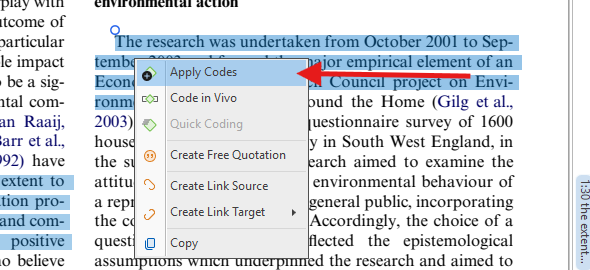
- Highlight a relevant segment of text.
- Right-click the highlighted text.
-
Select Apply Codes.
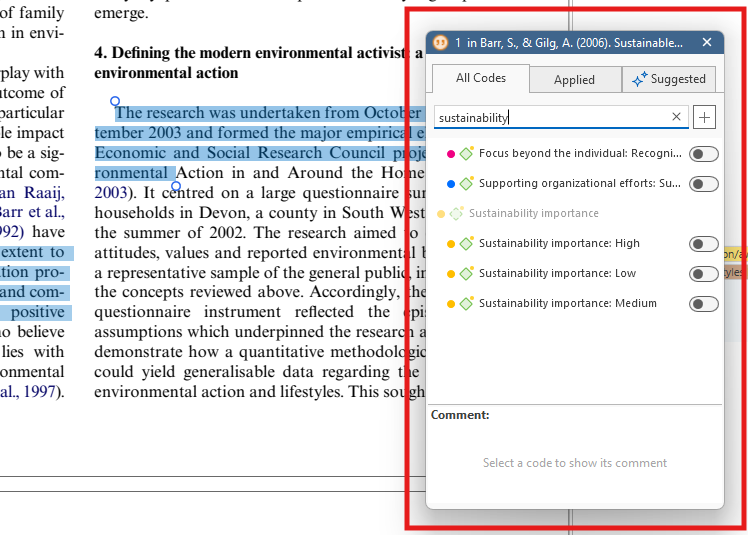
- Then you can either:
- Select an existing code
-
Or type a new code name and press Enter
- Continue coding additional segments.
Keyboard shortcuts
| Action | Windows | Mac |
|---|---|---|
| Apply Codes | Ctrl + J |
Cmd + J |
| Create Free Code | Ctrl + K |
Cmd + K |
| Quick Coding / Apply Last Used Code | Ctrl + L |
Cmd + L |
| In-Vivo Coding | Shift + Ctrl + V |
Shift + Cmd + V |
ATLAS.ti Web
- Open a document in your project.
- Highlight relevant text.
- The coding window opens automatically.
- In the Find or create codes field:
- Select an existing code
-
Or type a new code name
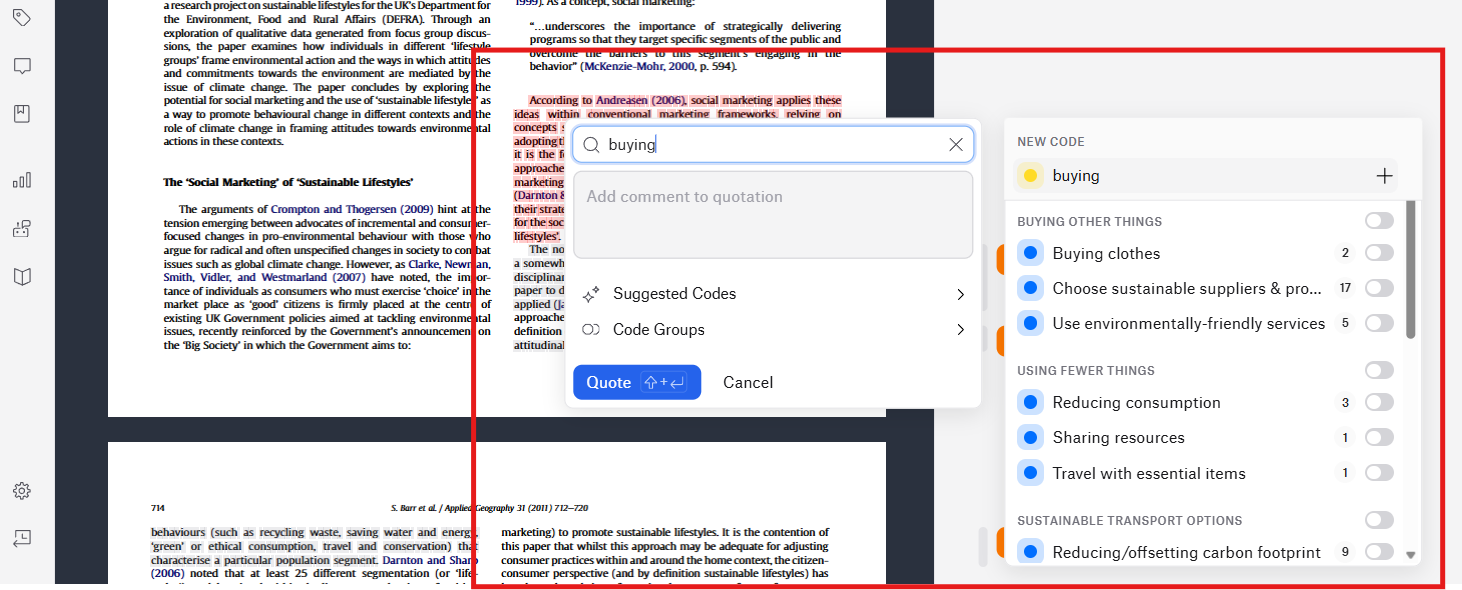
- Click the code or press Enter.
- Click Quote or press Shift + Enter to save the quotation and attached code.
Use existing codes
As your project grows, you will reuse codes across many quotations.
All platforms allow you to:
- Search for existing codes
- Filter codes using code groups or categories
- Apply multiple codes to the same quotation
- Drag and drop codes onto quotations in desktop versions. Highlight a data segment, select one or more codes from the code list and drag the code onto the highlighted data segment.

Create in-vivo codes
In-vivo coding uses the participant’s own words as the code name.
Example:
If a participant says:
“I constantly feel overwhelmed at work”
You could highlight “overwhelmed at work” and turn it directly into a code.
Windows and Mac
Highlight text and select Code in Vivo.

ATLAS.ti Web
Highlight the text and click In-vivo in the coding window.

Add comments to quotations
Comments help you capture ideas, interpretations, reminders, and analytic notes while coding.
ATLAS.ti Windows and Mac
- Open a document with coded quotations.
- Right-click a quotation in the margin area.
- Select Edit Comment.
- Enter your comment.

ATLAS.ti Web
- Open a document.
- Click a quotation in the margin area.
Quotations are usually shown as vertical gray bars beside the coded text.
- Click the space labeled Add Comment to Quotation.
- Type your comment.

You can edit quotation comments at any time.
Organize codes into categories
As projects grow, you may want to organize codes into broader categories or sub-codes.
Examples:
- Emotion
- Anxiety
- Frustration
- Excitement
- Workplace Issues
- Burnout
- Communication
- Leadership
Here is an example of an opened Code Manager with codes and subcodes. Adding colors helps navigate the project, especially when working with a large number of codes.

ATLAS.ti Web supports hierarchical code categories and sub-codes to help structure analysis and improve navigation through large code lists.
Use AI Coding tools
ATLAS.ti also includes AI Coding tools that can help generate suggested codes automatically.
AI Coding can help:
- Identify recurring themes
- Suggest initial code structures
- Organize AI-generated codes into categories and sub-codes
AI Coding works best as a starting point. Researchers should still review, refine, and interpret codes themselves.
In ATLAS.ti Windows, AI Coding is available from the document ribbon while coding.
Common issues and mistakes
- Coding too much text at once
- Very large quotations can become difficult to analyze later. Try coding meaningful segments instead of entire pages.
- Creating too many similar codes
- Beginners often create duplicate or overlapping codes. Review and merge similar codes regularly.
- Forgetting to define codes
- Short comments or code definitions can help keep coding consistent, especially in team projects.
- Overusing in-vivo codes
- Participant language can be useful early in analysis, but broader analytical codes are often needed later to identify themes.
When to contact support
Contact support if:
- Quotations are not appearing in the margin area
- Codes cannot be applied or saved
- AI Coding tools are unavailable
- Documents cannot be edited or coded
- Keyboard shortcuts are not working correctly