
How to add text data to your project in ATLAS.ti
Key takeaways
- You can add text, PDF, image, audio, video, survey, and other document types to ATLAS.ti Desktop (Windows and Mac) projects and text and survey data to ATLAS.ti Web.
- ATLAS.ti Windows, Mac, and Web all support adding files or creating new text documents directly inside the project.
- Document groups help organize and filter your data during analysis.
- Documents can be reviewed and organized in the Document Manager
Who this article is for
This article is for ATLAS.ti Windows, Mac, and Web users who want to add, organize, and manage data in a project.
How to add documents in ATLAS.ti Windows
How to add existing files
- Open your project.
- Click Add Document.
-
Select Add Files.
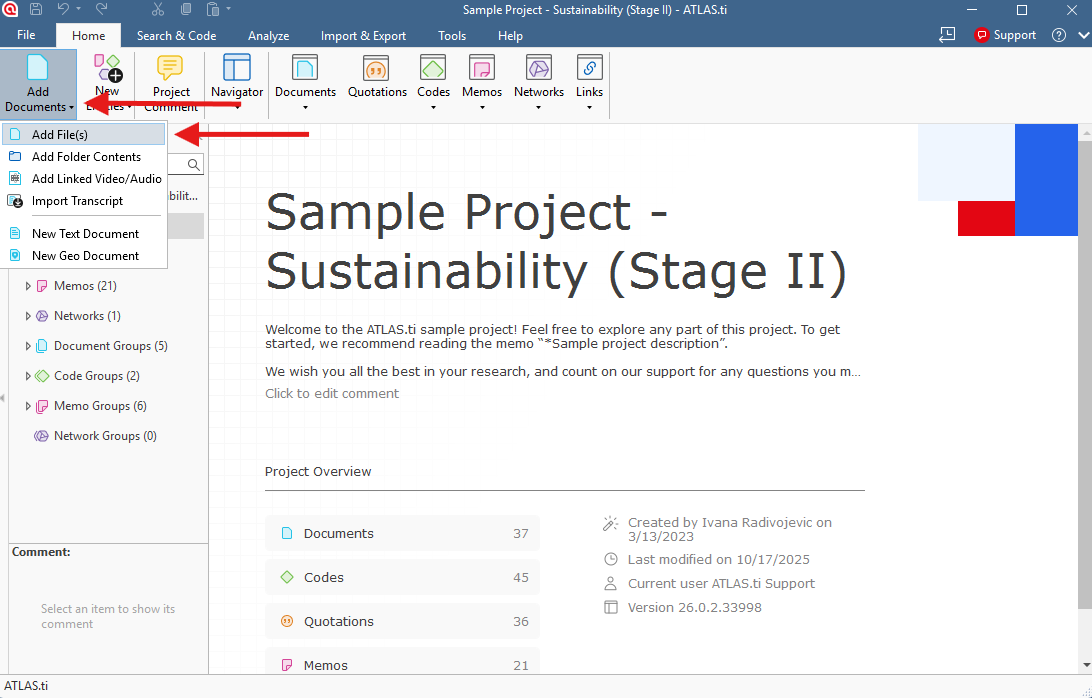
- Choose one or more files from your computer.
How to add new files
- Click Add Document.
-
Select New Text Document.
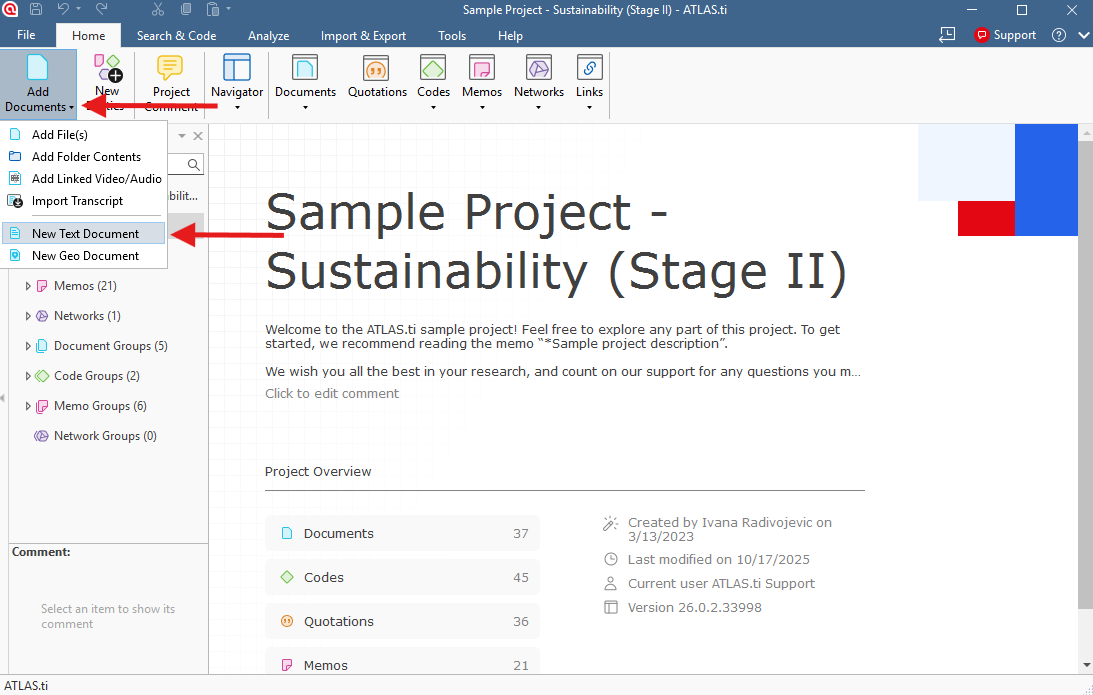
- Enter or paste text into the new document.
How to add documents in ATLAS.ti Mac
How to add existing files
- Open your project.
- Click Documents.
- Select Add Documents...
- Choose files from your computer.
How to create a new text document
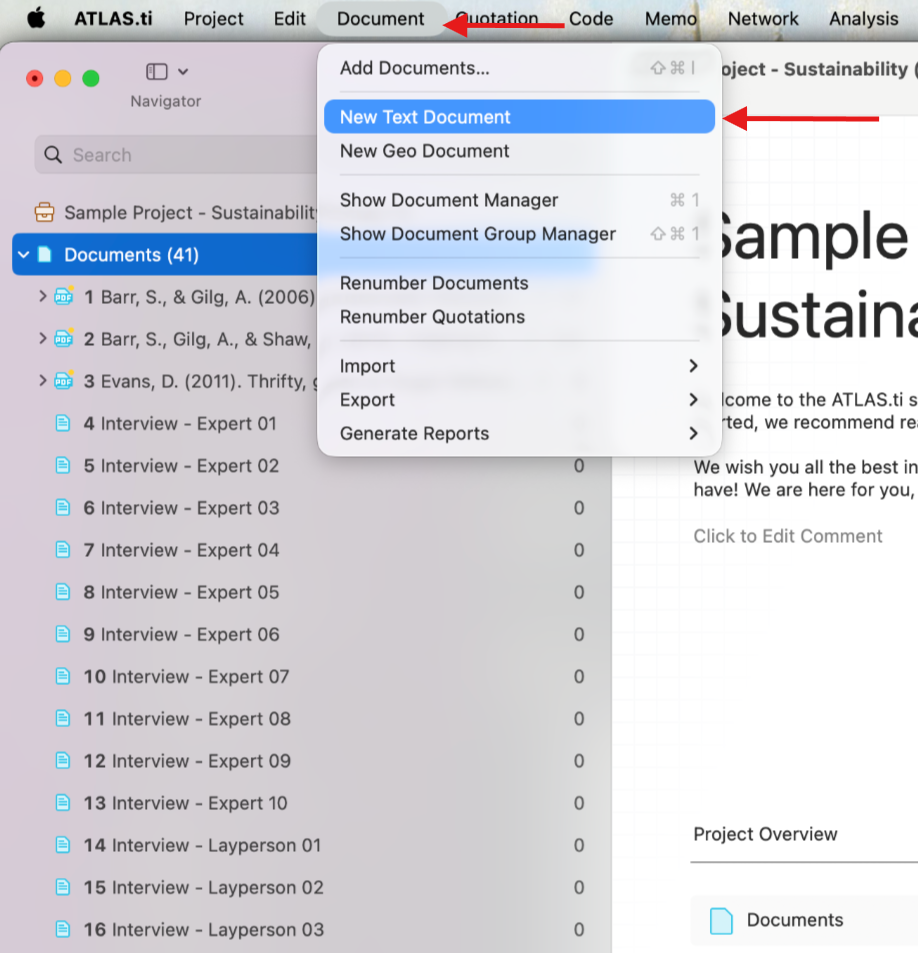
Click Documents.
- Select New Text Document.
-
How to add documents in ATLAS.ti Web
When you open a project in ATLAS.ti Web, the Document Manager opens automatically.
You can also open it by:
-
Clicking Document Manager in the left panel
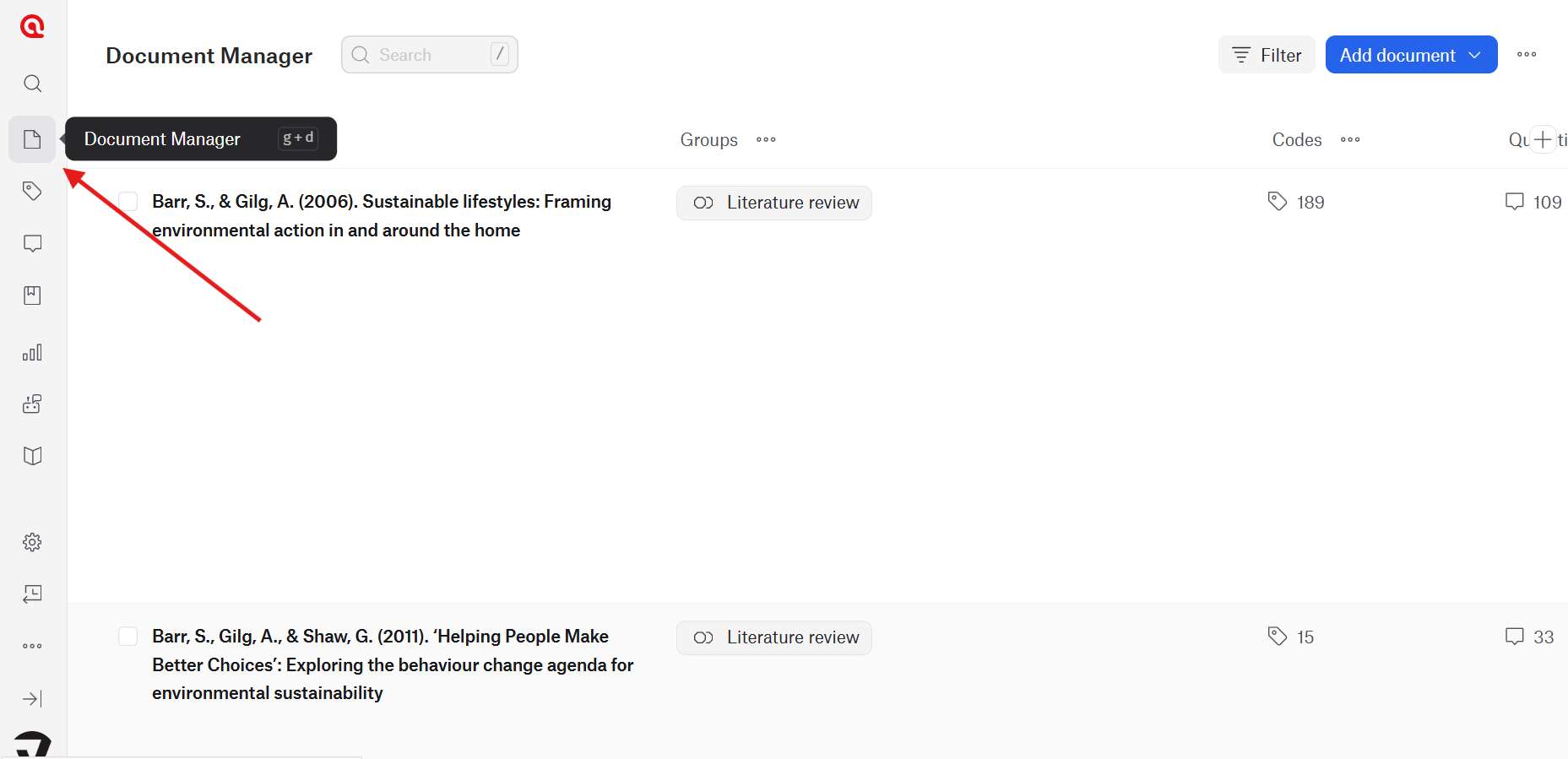
- Using the shortcut g + d
How to add documents
-
In the Document Manager, click Add document in the top-right corner.
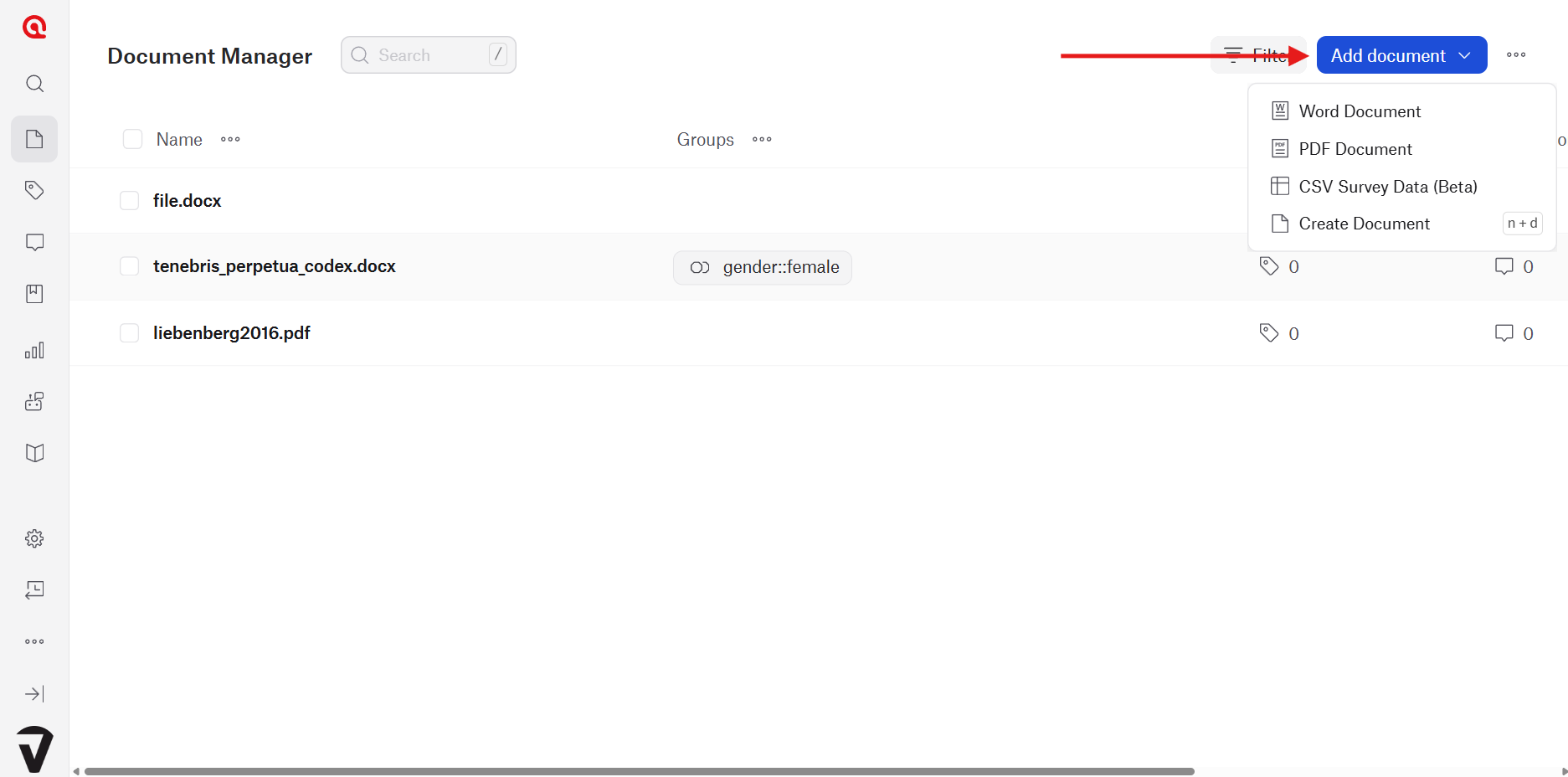
- Choose one of the available options:
- Word document
- PDF document
- CSV survey data (beta)
- Create document
- Upload files from your computer or create a new document directly in ATLAS.ti Web.
If you have unsupported formats or plain text from another source, you can paste the content into a newly created document and work with it there.
Common issues and mistakes
- Unsupported file types
- If a file format is unsupported, convert it to a supported format before importing.
- ATLAS.ti Desktop (Windows and Mac) support the following file formats:
- Native text documents (editable in ATLAS.ti)
- .doc, .docx, .rtf (MS Word)
- .odt (Open Office)
- .htm, .html
- .txt
- .ooxml
- PDF files
- Text PDFs (searchable, text-retrievable)
- Graphic PDFs (treated as images; not searchable unless OCR was applied)
- PDFs with annotations and bookmarks
- Files auto-converted to PDF on import
- .mobi (ebooks)
- .xls, .xlsx (Excel), .ods (Libre Office Calc)
- .ppt, .pptx (PowerPoint), .odp (Libre Office Impress)
- .vsd, .vsdx (Visio), .odg (Libre Office Draw)
- Native text documents (editable in ATLAS.ti)
- Large unorganized projects
- Adding many files without groups or folders can make navigation difficult later. Organize documents early in the project.
- Renaming source files outside ATLAS.ti
- Avoid changing linked file locations or names outside the software after importing, especially for multimedia projects.
When to contact support
Contact support if:
- Documents fail to import
- Files appear blank or corrupted
- Audio or video files do not load correctly