
How to transcribe data in ATLAS.ti (Windows, Mac, and Web)
Key Takeaways
- You can transcribe audio and video files directly in ATLAS.ti Windows and Mac.
- ATLAS.ti Windows and Mac support both manual transcription and automatic transcription.
- Automatic transcription supports speaker detection and more than 30 languages.
- Multimedia transcripts remain linked to the original media file, allowing you to move between transcript text and audio/video playback.
- ATLAS.ti Web supports working with transcript documents, but multimedia transcription workflows are currently available only in Windows and Mac
Who this article is for
Anyone working with interviews, focus groups, meetings, lectures, or other audio/video data in ATLAS.ti who wants to create, import, edit, or analyze transcripts.
How to manually transcribe audio/video in ATLAS.ti
ATLAS.ti allows you to manually transcribe audio and video files while listening to or watching the media. Once created, the transcript remains linked to the original media file so you can review, code, and analyze the data more efficiently.
You can transcribe:
- Audio files
- Video files
- Interviews
- Focus groups
- Meetings
- Lectures
- Podcasts
- Recorded observations
ATLAS.ti Windows and Mac
- Open your project
- Add the audio or video file to the project
- Open the multimedia document
- Open the transcript panel and select import transcript
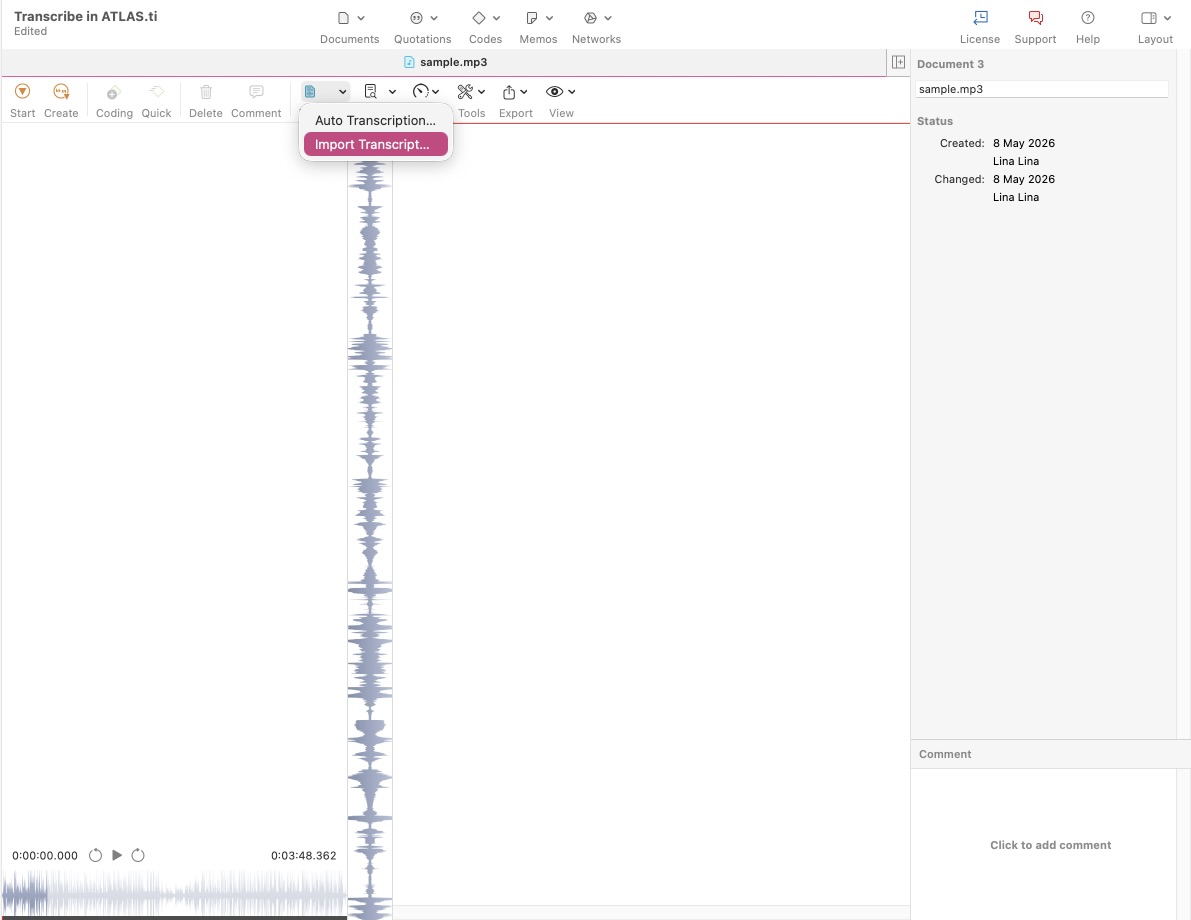
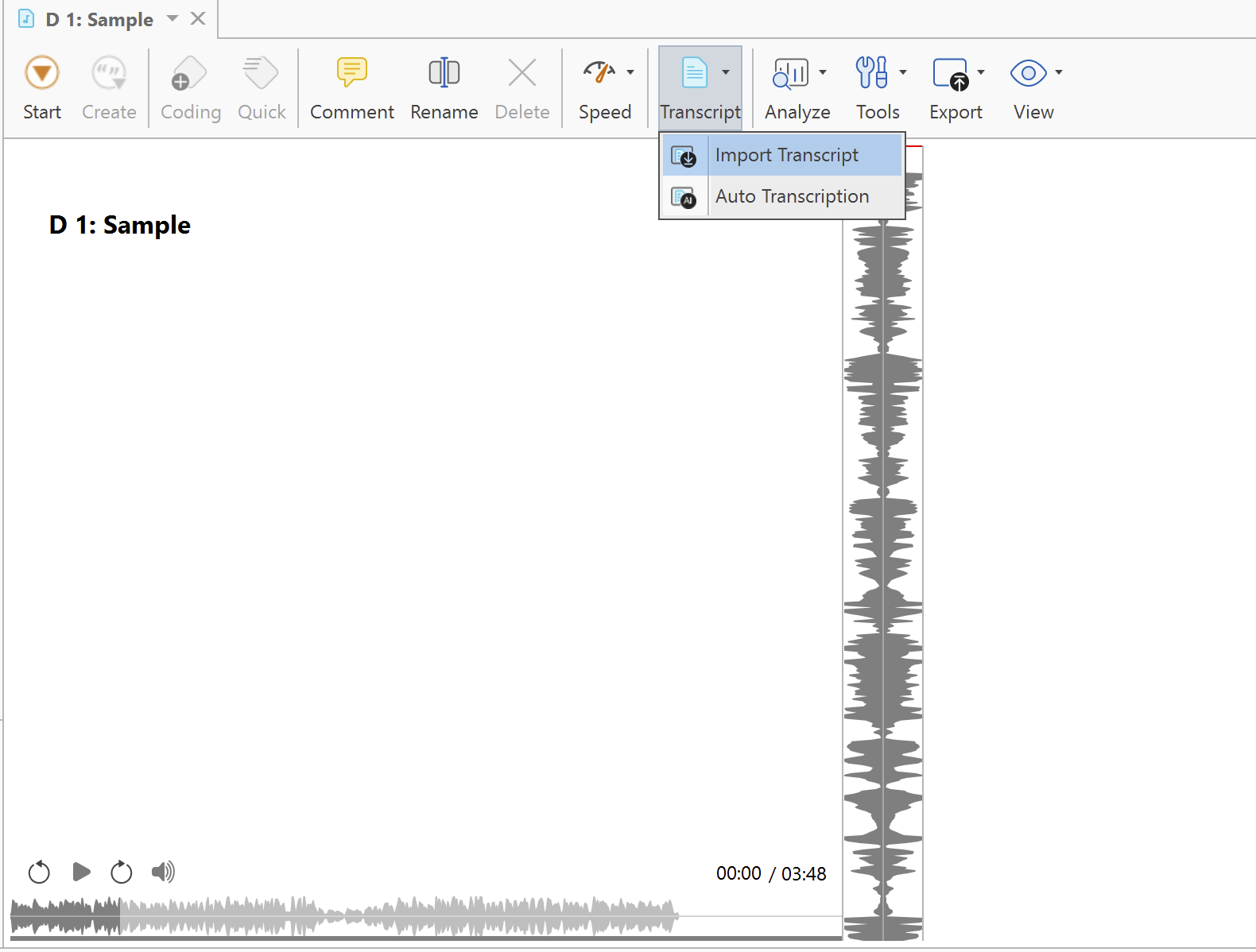
- You can prepare a blank Word document beforehand, then manually add the text from your video or audio to the document within the project.
- Start playback of the media file
- Type your transcript while listening or watching
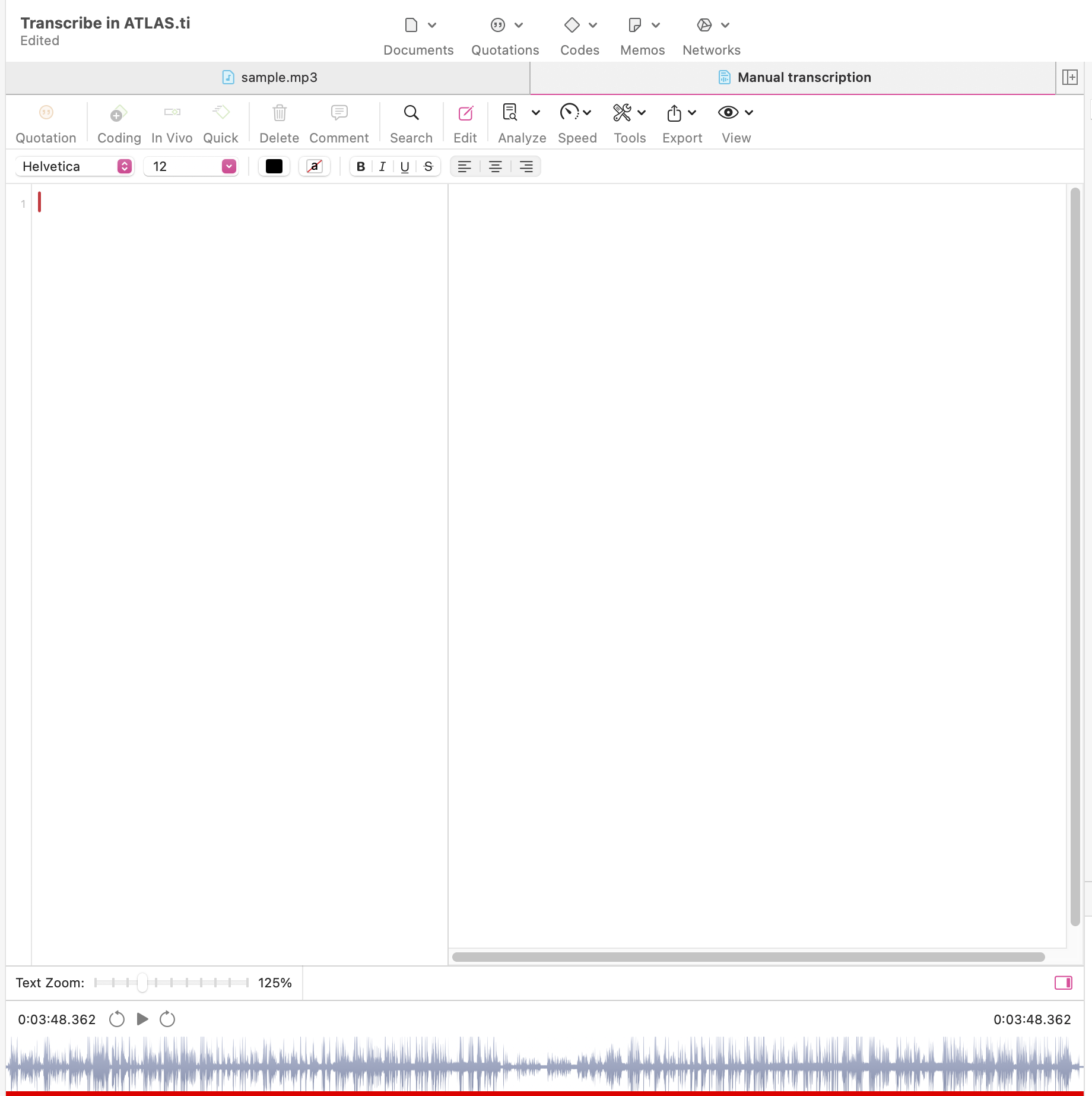
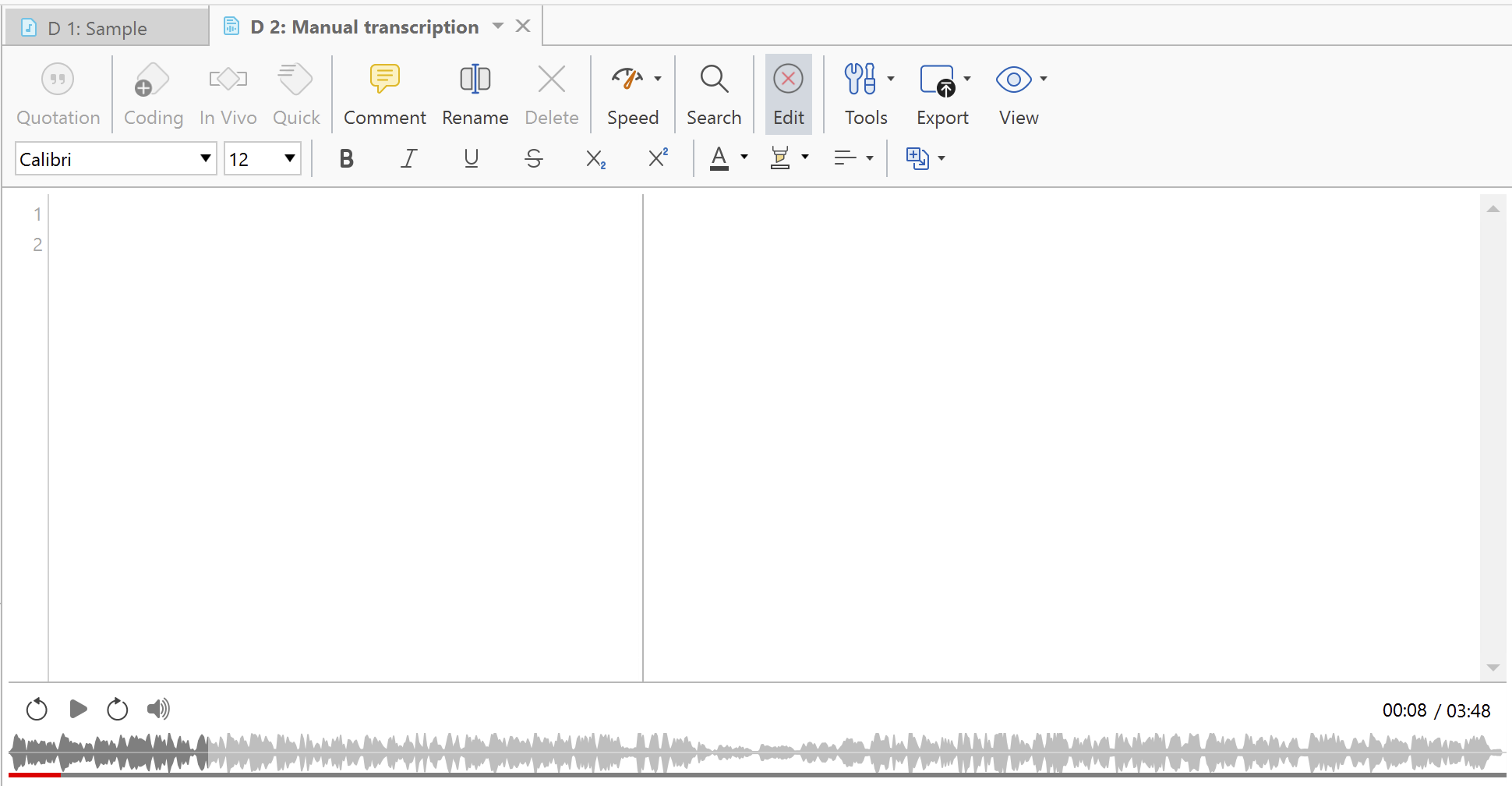
- Save your changes
The transcript remains synchronized with the media file, allowing you to move between transcript text and the corresponding media segment.
You can also:
- Navigate easily between text and media
- Create quotations directly from transcript segments
- Apply codes while reviewing the transcript and media side by side
If your transcript contains timestamps, you can navigate through the recording while listening to the audio or watching the video.
You can also refer to the official video tutorials:
- Windows: https://atlasti.com/video-tutorials/atlas-ti-windows-video-tutorials#how-to-work-with-transcriptions-in-atlas-ti-windows
- Mac: https://atlasti.com/video-tutorials/atlas-ti-mac-video-tutorials#how-to-work-with-transcriptions-in-atlas-ti-mac
ATLAS.ti Web
ATLAS.ti Web currently does not support direct multimedia transcription workflows for audio and video files.
However, you can still:
- Upload transcript documents created outside ATLAS.ti
- Analyze and code transcript documents
- Import projects created in ATLAS.ti Windows or Mac that already contain transcript data
For multimedia transcription workflows, use ATLAS.ti Windows or Mac.
How to use the automatic transcription
As a paid service, ATLAS.ti offers very fast, high-quality automatic transcription. ATLAS.ti Windows and Mac can automatically generate transcripts for supported audio and video files using AI Transcription. It leverages advanced artificial intelligence to transform your audio and video recordings into text quickly and accurately. It supports popular audio and video formats making it compatible with most recording devices. The tool includes features like automatic speaker diarization and synchronized playback for enhanced analysis while ensuring compliance with data security standards like GDPR.
ATLAS.ti Windows and Mac
- Add the audio or video file to your project by clicking on Document and select the file
- Whenever you import a single audio or video file, ATLAS.ti will ask whether you want to provide a transcript file, automatically transcribe the file, or import it without a transcript.
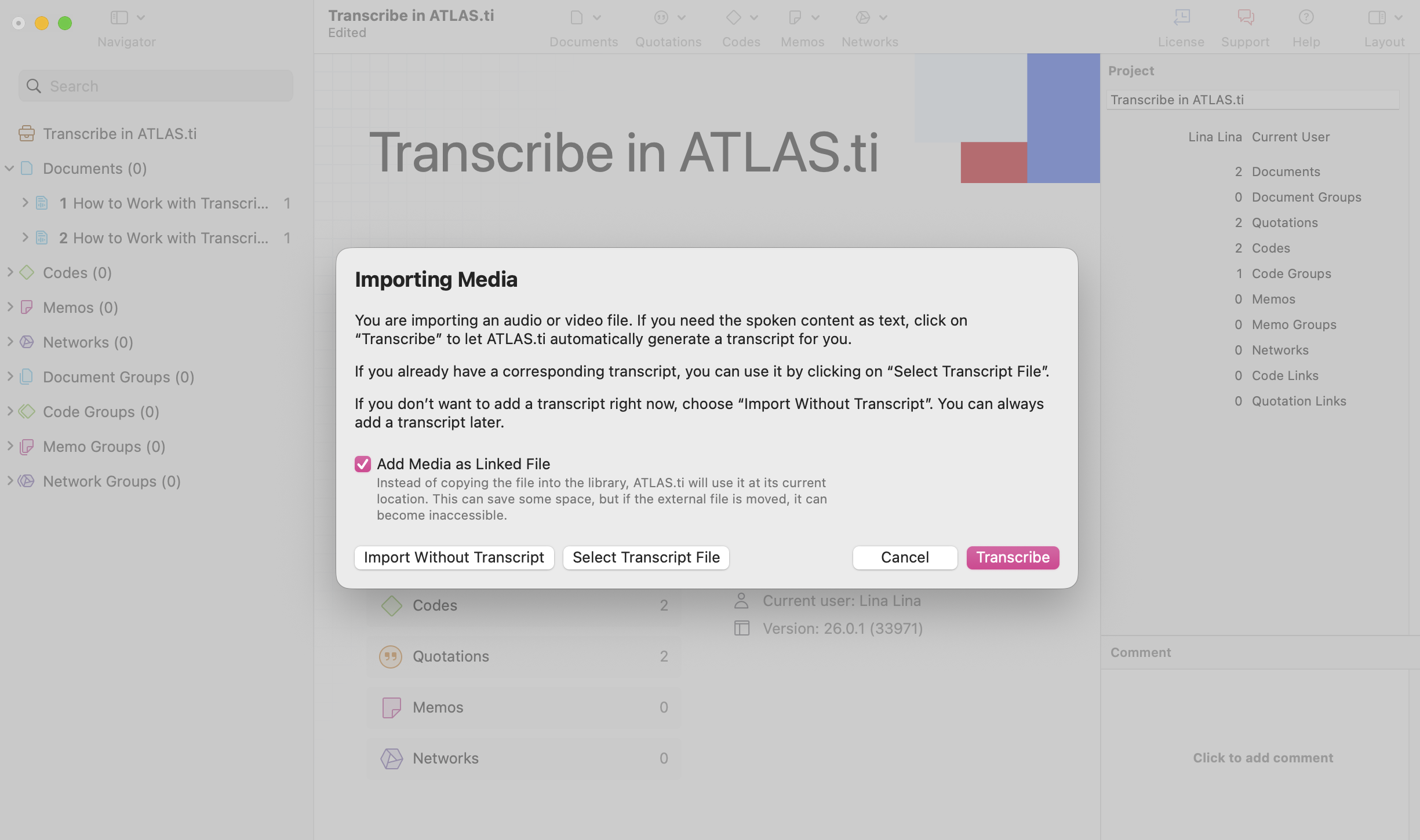
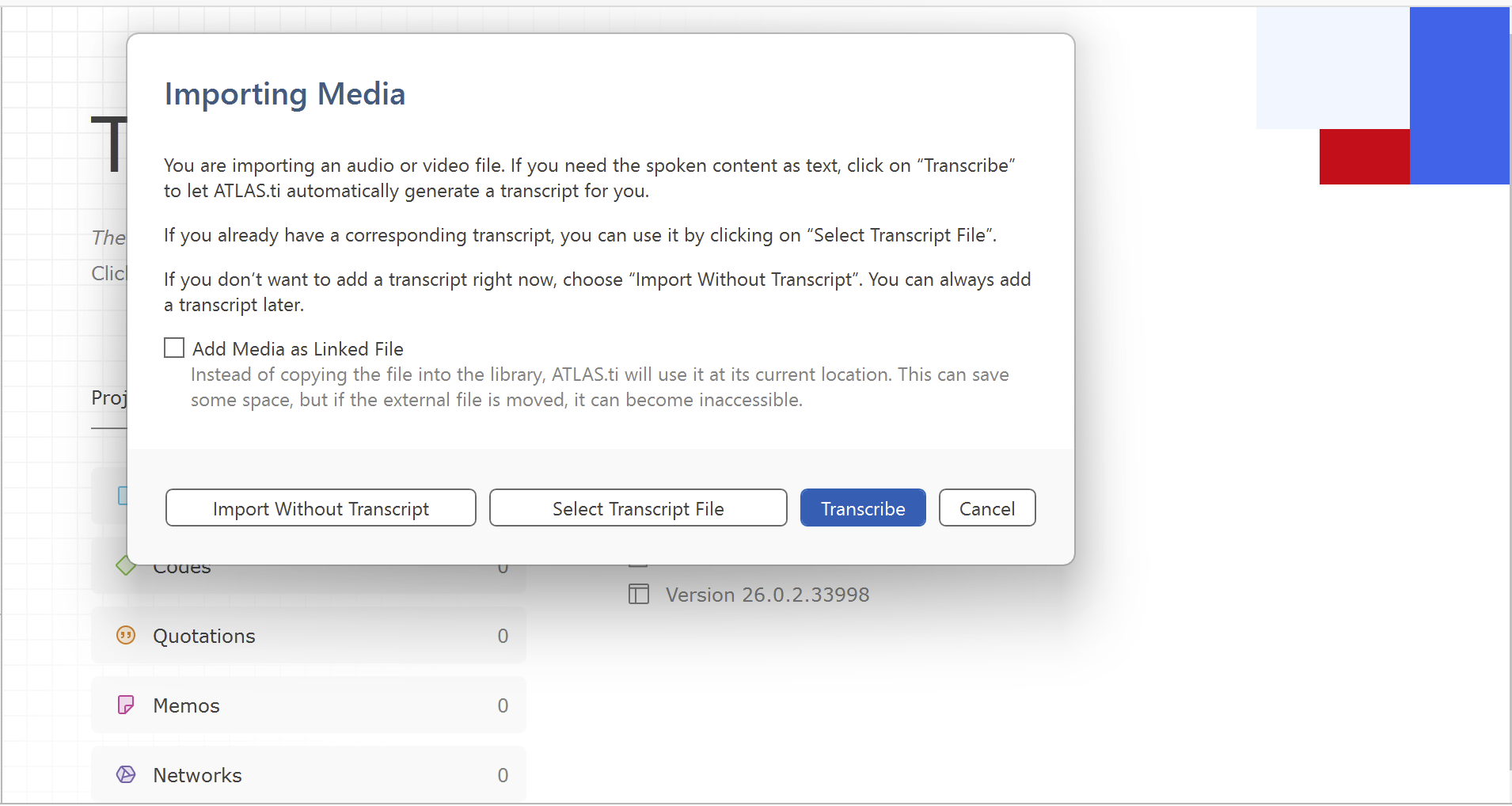
- To use the auto transcription tools, select "Transcribe"
- You can also have a document transcribed automatically at a later time. Simply open it, then in the toolbar click Transcript and choose Auto Transcription
- Choose your preferences, including:
- Language selection
- Automatic speaker detection
- Start the transcription process
- Wait for the transcript to be generated
- Review and edit the transcript as needed
ATLAS.ti supports more than 30 transcription languages and can automatically separate speakers in supported recordings. You can find the list here: https://atlasti.com/supported-languages-auto-transcription
Every transcription remains synchronized with the original recording, allowing you to move easily between text and media during analysis.
ATLAS.ti Web
Automatic transcription is not currently available in ATLAS.ti Web.
If you want to work with transcripts in ATLAS.ti Web, first create or import the transcript using ATLAS.ti Windows or Mac, or use an external transcription service and upload the transcript as a text document.
How to import an existing transcript
If you already have a transcript created outside ATLAS.ti, you can import it together with the multimedia file.
Supported transcript formats include:
- TXT
- RTF
- DOCX
Supported timestamps can help synchronize transcript text with the media timeline.
ATLAS.ti Windows and Mac
- Add the multimedia file to your project along with the transcript by adding it as document
- You can also use Import Transcript feature
Please note that the multimedia file and transcript will be linked together as a single document in ATLAS.ti.
How to code audio or video without a transcript
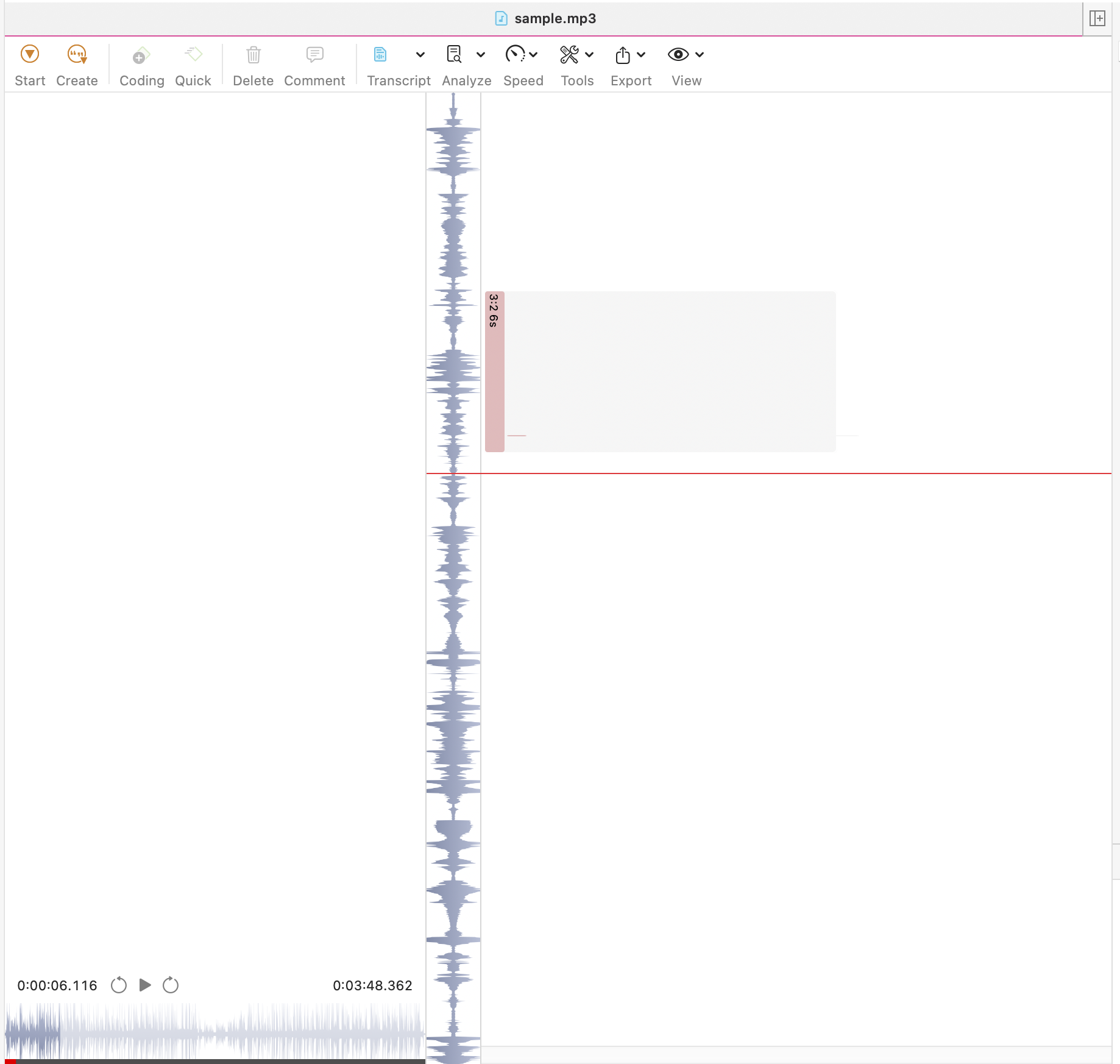
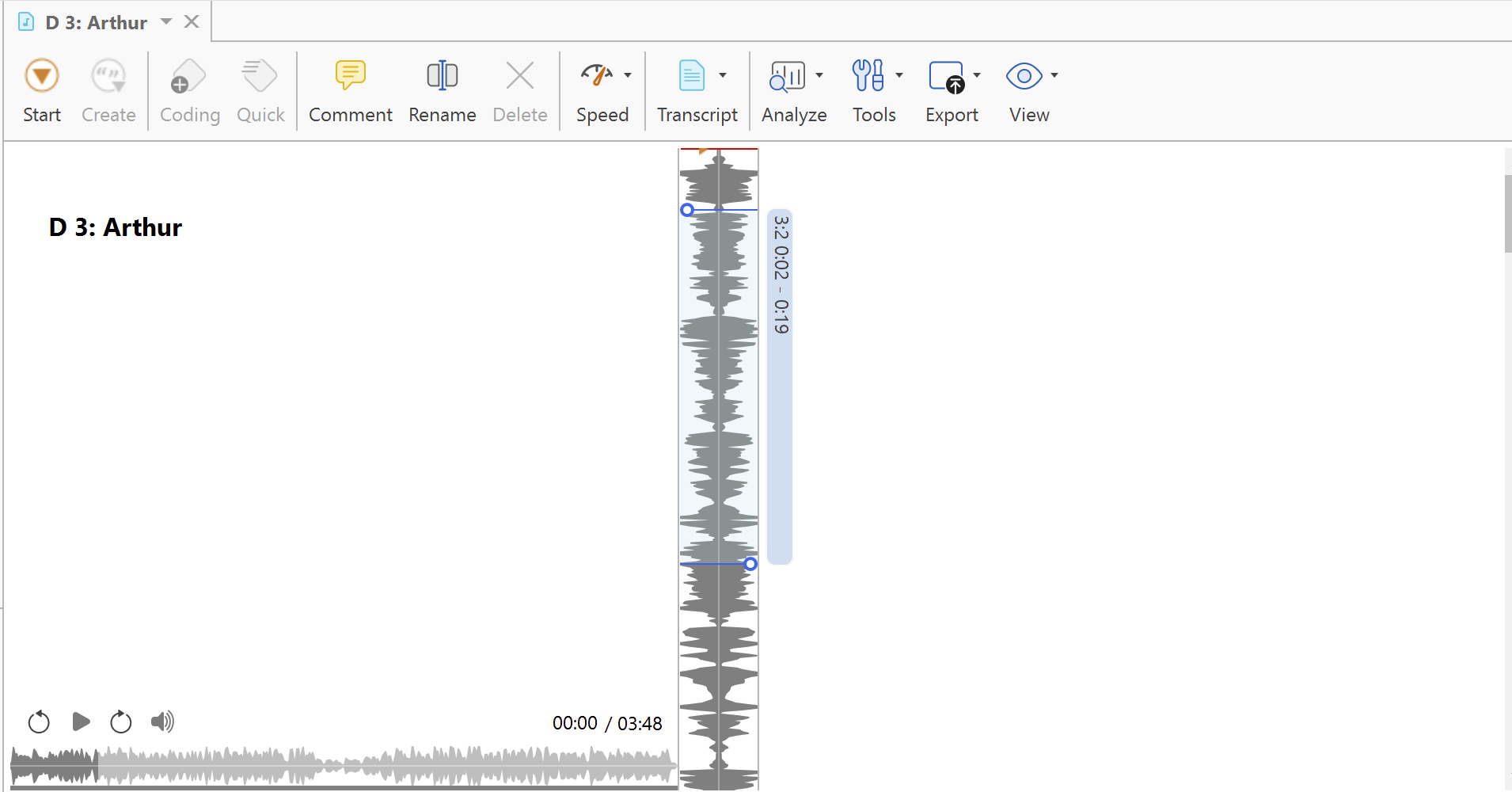
You can also work directly with audio or video files without creating or importing a transcript in ATLAS.ti Desktop ( Windows/Mac)
Simply import the multimedia file without linking a transcript. You can then:
- Play the audio or video file, click Start, and then drag across the transcript to create quotation marks.
- Apply codes to selected multimedia segments
Common issues and mistakes
- Automatic transcription is unavailable
- Ensure your ATLAS.ti version is up to date
- Your internet connection is stable
- The media format is supported
- The selected language is supported
- Transcript and media are not synchronized
- This can happen if timestamps were modified manually in an imported transcript.
- Try re-importing the transcript or checking the timestamp formatting.
- The automatic transcript contains mistakes
- Poor audio quality, background noise, overlapping speakers, or strong accents may reduce transcription accuracy.For best results:
- Use clear recordings
- Minimize background noise
- Use high-quality microphones
- Review and edit automatic transcripts manually
- Poor audio quality, background noise, overlapping speakers, or strong accents may reduce transcription accuracy.For best results:
- I cannot transcribe audio or video in ATLAS.ti Web
- Direct multimedia transcription workflows are currently supported only in ATLAS.ti Windows and Mac.
- I only want to code the audio or video file
- You do not need to create or import a transcript. Multimedia files can be coded directly.
- I do not have any transcription minutes available.
- Please ensure that your transcription minute codes have already been activated at my.atlasti.com
When to contact support
Contact ATLAS.ti Support if:
- Automatic transcription fails repeatedly
- Imported transcripts do not synchronize correctly
- Your multimedia file cannot be processed
- Speaker detection is not working as expected
- You receive transcription-related error messages
When contacting support, please include:
- Your ATLAS.ti version
- Your operating system
- The multimedia file format
- Screenshots or error messages, if available